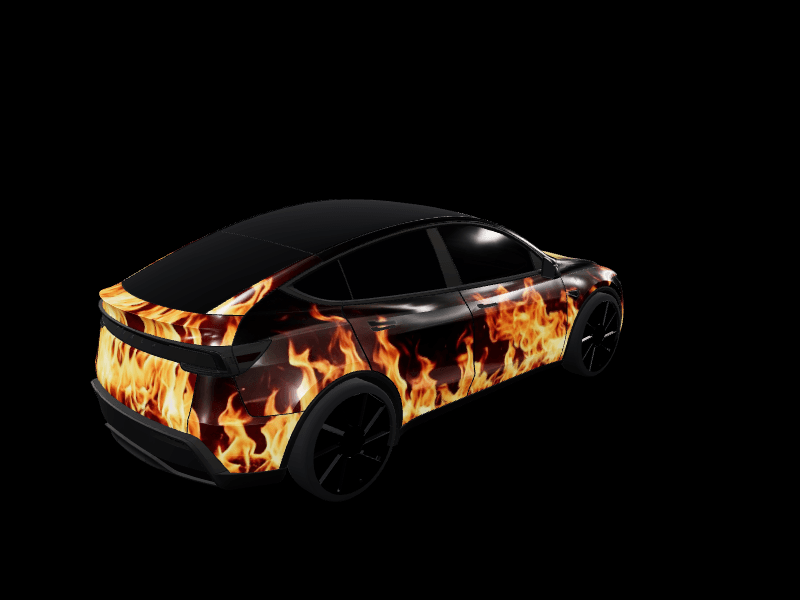
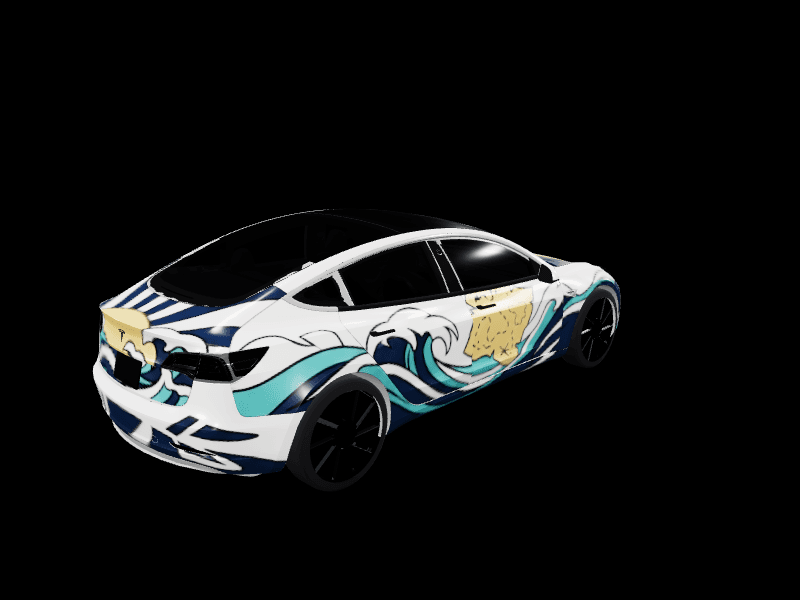
Exporting your wrap to USB and applying it in your Tesla
Format the USB, drop the PNG in the Wraps folder, apply it from your Tesla's Paint Shop. Five steps total.

Heads up before the USB steps: since the 2026 Summer Update (version 2026.26), you can skip the drive entirely and upload your wrap from the Tesla app over the air. If your car and app are current, that's the faster path. The USB method below still works on every Paint Shop-equipped Tesla, and it remains the answer for cars on older software or when you'd rather work offline.
You have a wrap file. Getting it onto the car takes a USB drive, the correct file system, and the right folder. Skip a step and the car silently ignores the file with no error message. Here's the full sequence.
Step 1: Save and download from the studio
Open your design in the studio and click Save Design, then click Download Wrap on the design page that opens. Not signed in? Save Design offers Download Wrap straight away. You can also take any finished design from the community gallery with the Download Wrap button on its page. Either way, the PNG lands in your computer's downloads folder.
A few things the download handles for you. The PNG is sized correctly for your vehicle (1024x1024 for most, 1024x768 for the Cybertruck). The studio compresses the file to stay under Tesla's 1MB limit. And the studio keeps your design inside the wrappable area automatically, so the wrap won't bleed into windows or lights.
If the download warns you that the file is still over 1MB, your design is too photo-heavy. Replace photo elements with flatter colors or a solid background and download it again. The car rejects files over 1MB silently; you won't get an error in the car, the wrap just won't appear.
If you haven't shipped a wrap yet, the 5-minute first-wrap walkthrough gets you to the export step from scratch.
Step 2: Format a USB drive as exFAT
Tesla accepts exFAT, MS-DOS FAT (FAT32), ext3, and ext4. Tesla does NOT accept NTFS. This is the single most common reason wraps don't load: a USB formatted as NTFS plugs in, the car mounts it, the wrap never appears, and there's no error message.
If you're not sure how your USB is formatted, reformat it as exFAT. exFAT works on Windows, Mac, and the car. On Windows, right-click the USB in File Explorer, pick Format, choose exFAT, click Start. On Mac, open Disk Utility, select the USB, click Erase, pick ExFAT, click Erase.
Use a small dedicated stick (a 32GB drive is overkill but cheap). Don't use the same USB you're using for Sentry Mode video; the wrap file lives in a different folder structure and mixing them can confuse the car.
Step 3: Create the right folder structure
The car looks for wrap files in one folder on the USB, and the name has to match exactly. Create a folder called Wraps at the root of the drive. Same folder for every model: Model 3, Model Y, Cybertruck, Model S, and Model X all read from Wraps.
Capitalization counts. wraps, Wrap, or Tesla Wraps won't be seen. It's Wraps, nothing else.
Drop your exported PNG inside that folder. Keep the filename to letters, numbers, dashes, underscores, and spaces, and under 30 characters. Most users name the file after the design ("midnight-forest.png", "cyber-grid.png") so they can tell them apart. You can keep up to 10 wraps in the folder and switch between them in the car.
Step 4: Plug it into the car and select the wrap
Plug the USB drive into a front data port. On many cars built since late 2021 the console ports only charge, so use the glovebox port.
Once the USB is mounted, open Toybox on the touchscreen, choose Paint Shop, and switch to the Wraps tab. Tesla Paint Shop is where custom wraps live on the car.
The car scans the Wraps folder, finds your PNG, and shows it as a selectable option. Tap it. The in-dash illustration of your car updates immediately to show your wrap.
If the wrap doesn't appear in the selection list, the most common culprits, in order:
- USB is NTFS-formatted instead of exFAT. Reformat and try again.
- Folder name has a typo or wrong capitalization. Verify the folder is exactly
Wraps. - PNG is over 1MB. Re-export from the studio with a flatter design or stronger compression.
- PNG dimensions are wrong (you tried to use a Cybertruck file on a Model Y). Re-export against the correct vehicle in the studio.
- Your car's software is too old to include Paint Shop. Update to the latest version, then look for Paint Shop in Toybox.
Step 5: Remove or change the wrap
Want a different wrap? Drop another PNG in the same folder. The car shows both in the selection list; tap the one you want. You can keep multiple wraps on the USB and switch as often as you want.
To revert to the stock illustration, the easy way is to tap "Default" (or "Stock") in the car's selection menu. The hard way (if that option doesn't appear): unplug the USB, delete the PNG, plug it back in. A two-finger steering-wheel restart (hold both scroll wheels ~10 seconds) clears any cached preview.
A note on safety and warranty
This is a Tesla-supported feature. You're not jailbreaking the car. You're not modifying firmware. You're loading an image file into a directory Tesla designed for image files. Your warranty isn't affected, your insurance isn't affected, and the car doesn't care which wrap (or no wrap) you've selected.
The wrap only appears on the in-dash illustration. Other drivers can't see it. The car looks exactly like an unwrapped Tesla from outside; this is purely a "the digital twin in your dashboard wears a custom skin" feature.
Common questions
Does the wrap show up on the mobile app? Yes, on current software. The Tesla app renders your car with its selected wrap, and since the Summer Update the app's Creations > Wrap tab can upload and manage wraps directly. The app upload walkthrough covers that flow.
Will the wrap survive a software update? Yes, as long as the USB stays plugged in. The selection is read on each boot.
Can I unplug the USB after selecting? On most software versions, no. The car re-reads the USB at boot and reverts to stock if the file is gone. Keep the USB plugged in.
Can I share my wrap file with another Tesla owner? Yes. PNGs are portable across any car running the same vehicle type. This is part of why the community gallery exists.
What to do if you're stuck
If you've checked the file system (exFAT), folder name (exact Wraps match), file size (under 1MB), and dimensions (correct for your model) and the wrap still doesn't appear, the issue is almost always one of those four. Run through them one more time, or drop the PNG into the Tesla wrap file checker, which tests the file side of that list in seconds. If it still doesn't work, the car's software may be too old to include Paint Shop, so update to the latest version and check Toybox again.
For a deeper view of which Tesla models support which features, the feature matrix breaks it down by year and trim.
Otherwise, get exporting. Open the studio and pick a design.
Get a wrap onto your Tesla
Grab a free community design, then load it in Paint Shop from the Tesla app or a USB drive.