Loading…
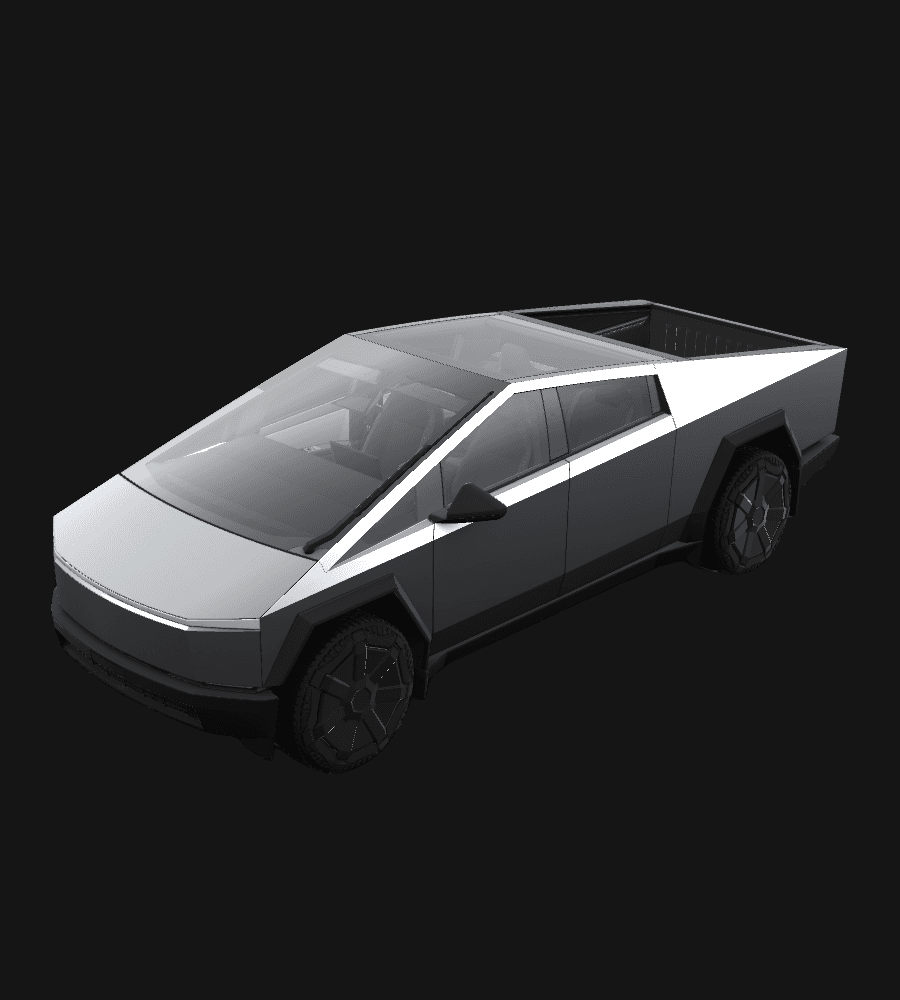
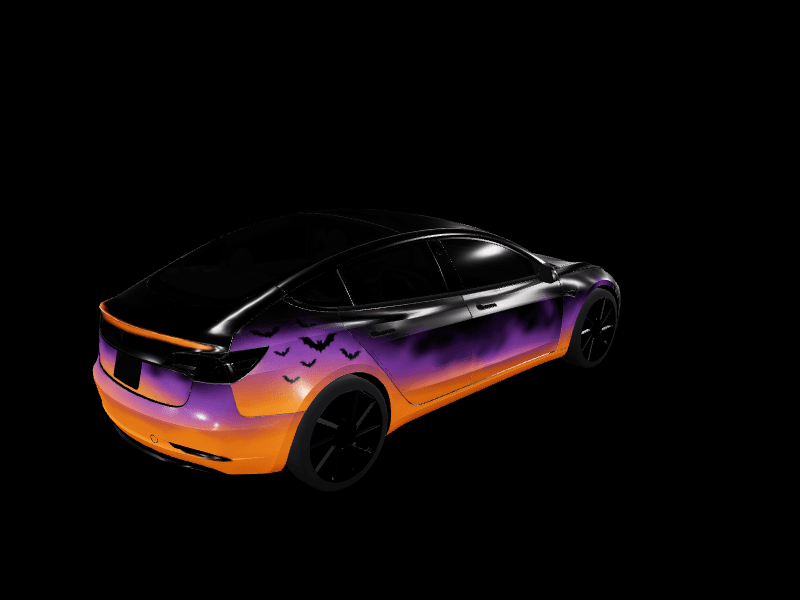
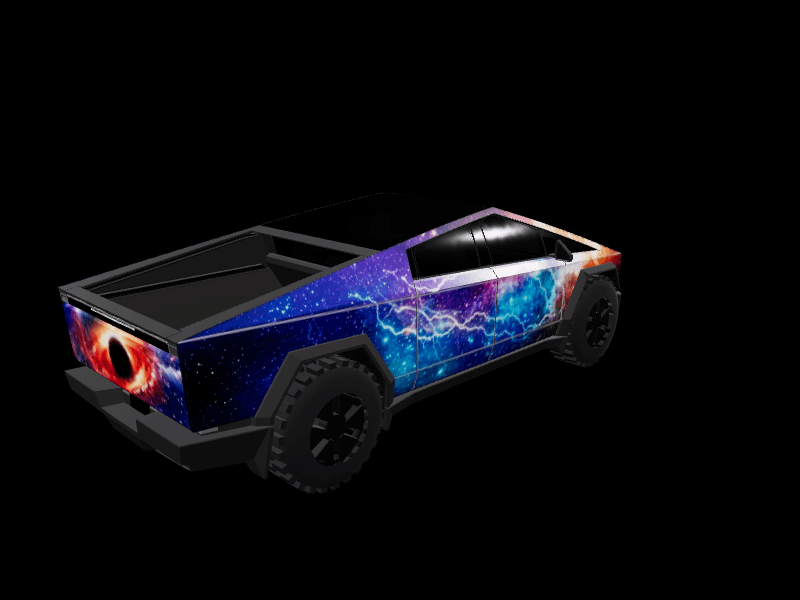
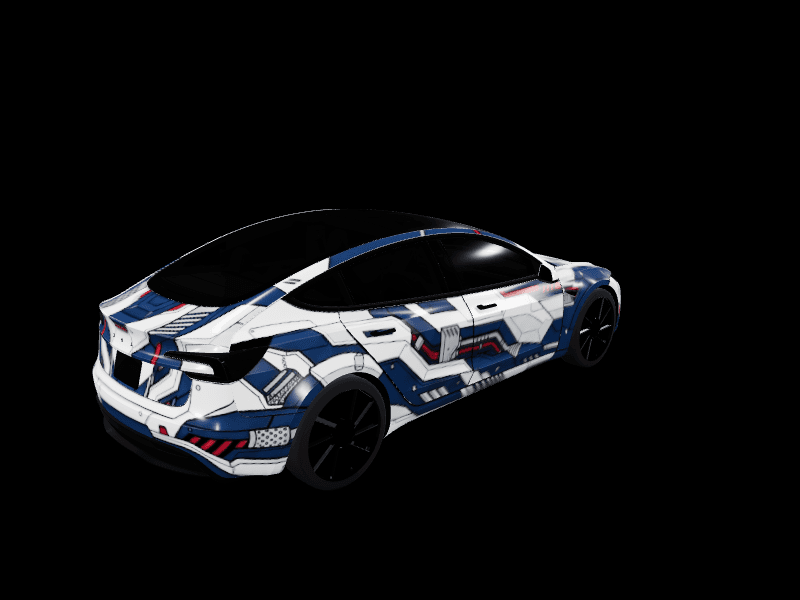
Fresh from the community
Every wrap here was made in FrunkLab. Open one to see it in 3D, or make it yours.
All wraps

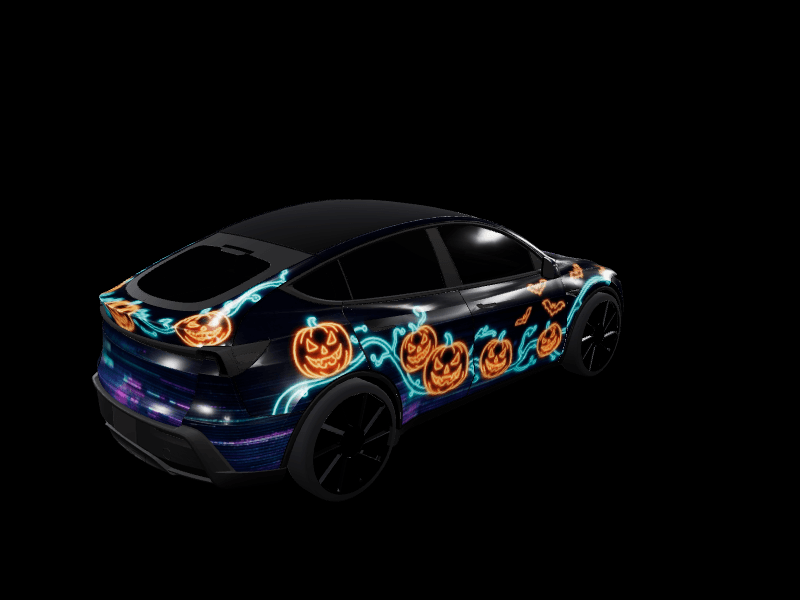
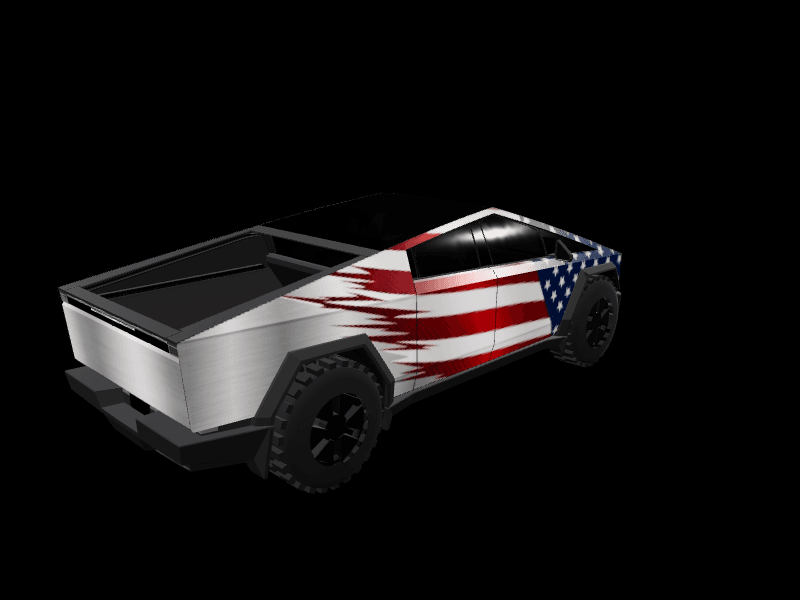


Tesla lock sounds and AI lock chimes
Swap the chime your Tesla plays when it locks. Pick one below or from all 392 in the library, or describe your own and the AI lock chime generator makes it. Copy LockChime.wav to the top level of a USB drive, plug it into a front data port, then open Toybox > Boombox, turn on Lock Sound and choose USB.
Free to start
Your Tesla. Your look. Ready in minutes.
Pick your model, describe the wrap or draw it, watch it on the 3D car, and download a Paint Shop-ready file. No design skills, no vinyl, no appointment.
Something ships most weeks. See what is new.
What is a Tesla wrap for Paint Shop?
A Tesla wrap is a PNG image your car displays on its own screens. Open Toybox > Paint Shop on the touchscreen, pick the Wraps tab, and the vehicle shown on the display, and in the Tesla app, wears your design. Paint Shop arrived in Tesla's 2025 Holiday Update for Model 3, Model Y, and Cybertruck, and reached Model S and Model X in the 2026 Spring Update.
It is not vinyl. Nothing touches your paint, nothing is permanent, and you can swap designs as often as you like. Tesla Paint Shop guide, or see how digital wraps compare to real vinyl.
How to design a Tesla wrap
1. Pick your Tesla
Choose your model and year in the studio. You get that car's official Paint Shop template and its own 3D model.
2. Design or generate it
Draw, drop in photos, add text and stickers, or describe the look and let the AI paint it. Prompts that work.
3. Send it to the car
Export the PNG and upload it from the Tesla app under Creations > Wrap. Step by step.
Tesla custom wrap requirements
Tesla is strict about the file. Every export from FrunkLab already matches this, so there is nothing to resize or compress.
| File format | PNG only |
|---|---|
| Resolution | 512x512 to 1024x1024. Use your model’s template size: 1024x1024 for Model 3, Model Y, Model S, and Model X, 1024x768 for the Cybertruck |
| File size | Under 1 MB |
| Filename | Letters, numbers, spaces, underscores, and dashes only, up to 30 characters |
| How many | Up to 10 wraps from the mobile app plus 10 from a USB drive |
| Tesla app upload | Creations > Wrap > Upload. Needs Tesla app 4.59.1 or newer and car software 2026.26 or newer |
| USB drive | A folder named Wraps at the root of an exFAT, FAT32, ext3, or ext4 drive. NTFS is not supported |
| Where to apply it | On the car: Toybox > Paint Shop > Wraps |
Wraps for every Tesla
Tesla Model 3
Original body and the 2024+ Highland, each on its own 3D model.
Tesla Model Y
Every Juniper trim, the pre-2025 Model Y, and the Model Y L.
Tesla Cybertruck
Flat stainless panels, a landscape 1024x768 template, crisp art.
Tesla Model S
The 2021+ Model S and the 2025+ Plaid, each on its own template.
Tesla Model X
Falcon-wing doors and all, on a rotating 3D Model X.
Tesla lock chimes and AI sounds
A Tesla can play a custom sound when it locks: a WAV file named LockChime.wav, five seconds or shorter and under 1 MB. Copy LockChime.wav to the top level of a USB drive, plug it into a front data port, then open Toybox > Boombox, turn on Lock Sound and choose USB. FrunkLab has 392 ready-made lock chimes and Boombox sounds, and an AI lock chime generator that turns a short description, a spoken line, or a jingle idea into a Tesla-ready file.
Generate a lock chime with AI, browse the lock sound library, start with the best Tesla lock chimes, or read how to change your Tesla lock chime.
Design a Tesla wrap from Claude or ChatGPT
FrunkLab runs a remote MCP server, so an AI assistant can do the designing for you. Connect it once in Claude, ChatGPT, Cursor, or Claude Code, sign in with your FrunkLab account, and ask for a wrap or a lock chime in plain words. The result is saved to your designs, on the 3D car, ready to download for Paint Shop. It uses the same allowance as the website, and nothing is sold inside the chat.
Connect an AI assistant, or follow the Claude and ChatGPT setup tutorial.
Tesla wrap FAQ
What is Tesla Paint Shop?
Paint Shop is the feature inside your Tesla's Toybox that changes how the car looks on its own screens. Open Toybox > Paint Shop and you can recolor the vehicle visualization, tint the windows, restyle the license plate, and on the Wraps tab apply a custom PNG wrap. It shipped in Tesla's 2025 Holiday Update for Model 3, Model Y, and Cybertruck (the Cybertruck had custom wraps a year earlier), and reached Model S and Model X in the 2026 Spring Update. Nothing about your physical paint changes.
Tesla Paint Shop guideHow do I get the wrap onto my Tesla?
The easy way: export the PNG from the studio, save it to your phone, and upload it from the Tesla mobile app under Creations > Wrap > Upload (requires car software 2026.26 and app 4.59.1 or newer). The app previews it on a 3D model of your car and applies it over the air. The fallback for older software is a USB drive: put the PNG in a folder named Wraps on an exFAT or FAT32 drive, plug it in, and pick the design in Toybox > Paint Shop.
App upload walkthroughWhich Teslas are supported?
Model 3, Model Y, Cybertruck, Model S, and Model X all get the full studio with a rotating 3D preview, covering every generation Tesla's Paint Shop supports. Every supported Tesla can receive a wrap file on the car itself.
Which Tesla supports whatWhat file does my Tesla need for a custom wrap?
A PNG under 1MB, sized to your model's template (1024x1024 for most Teslas, 1024x768 for Cybertruck). FrunkLab exports exactly this format, so there's nothing to convert or resize. Deliver it either through the Tesla app (Creations > Wrap > Upload) or in a folder named Wraps at the root of an exFAT or FAT32 USB drive.
USB export walkthroughIs a digital wrap the same as a vinyl wrap?
No. A digital wrap changes how your car looks on its own screens and the Tesla app, not on the physical body. It costs far less and you can change it anytime. A physical vinyl wrap changes the actual paint surface and costs thousands.
Digital vs physical wrapsCan AI make my Tesla lock chime?
Yes. The AI lock chime generator turns a short description into a Tesla-ready WAV under 5 seconds and under 1MB. Type what you want to hear (a two-note futuristic chime, a robot voice saying "doors locked", an old cash register), pick a length, and download the file as LockChime.wav. Every generated chime is also saved to your My Chimes library.
Open the lock chime generatorHow do I change my Tesla lock chime?
Copy LockChime.wav to the top level of a USB drive, plug it into a front data port, then open Toybox > Boombox, turn on Lock Sound and choose USB. The file must be a WAV under 5 seconds and under 1 MB. Unlike wraps, lock chimes still load by USB only. FrunkLab's lock sound library has nearly 400 ready-made chimes, plus an AI generator that turns a text description into a Tesla-ready WAV.
Lock chime guideCan I use FrunkLab from ChatGPT or Claude?
Yes. FrunkLab has a remote MCP server. Connect it once in Claude, ChatGPT, Grok, Cursor, or Claude Code, sign in with your FrunkLab account, and ask the assistant to design a wrap or a lock chime. It uses the same monthly allowance as the website and the result lands in your designs.
Connect an AI assistantMore answers in the full FAQ, or just open the studio and start designing.