Tesla wrap templates
Updated
A Tesla wrap template is the flat PNG that Paint Shop uses to paint the car on your screen. Tesla publishes an official one for each version of each car. Below are all 13 versions FrunkLab supports: 12 use a 1024x1024 square and the Cybertruck uses a 1024x768 landscape. Find yours, download it from Tesla, or design on it right here in your browser.
Which template do you need?
Match the version of your car, not just the model. Two quick tells: a 2025 or newer Model Y (often called Juniper) has a light bar across the full width of the front and the rear, and a 2024 or newer Model 3 (Highland) has slimmer headlights and a smoother front bumper than the original.
For a closer look at one model, the Tesla Model Y wrap template guide and the Tesla Model 3 wrap template guide walk through every version and how its panels map onto the car.
| Template | Fits | Size | Tesla's name for it |
|---|---|---|---|
| Model 3 | 2017 to 2023 cars, before the 2024 refresh | 1024x1024 | Model 3 |
| Model 3 Highland | 2024 and newer, Standard and Premium | 1024x1024 | Model 3 Standard & Premium (2024+) |
| Model 3 Highland Performance | 2024 and newer Performance | 1024x1024 | Model 3 Performance (2024+) |
| Model Y | 2020 to 2024 cars, before the 2025 refresh | 1024x1024 | Model Y |
| Model Y L | The three-row Model Y L | 1024x1024 | Model Y L |
| Model Y Juniper Standard | 2025 and newer Standard | 1024x1024 | Model Y Standard (2025+) |
| Model Y Juniper Standard AWD | 2025 and newer Standard AWD | 1024x1024 | Model Y Standard (2025+) |
| Model Y Juniper Premium | 2025 and newer Premium | 1024x1024 | Model Y Premium (2025+) |
| Model Y Juniper Performance | 2025 and newer Performance | 1024x1024 | Model Y Performance (2025+) |
| Cybertruck | Every Cybertruck | 1024x768 | Cybertruck |
| Model S | 2021 and newer | 1024x1024 | Model S (2021+) |
| Model S Plaid | 2025 and newer Plaid | 1024x1024 | Model S Plaid (2025+) |
| Model X | 2021 and newer | 1024x1024 | Model X (2021+) |
Download a template or design on it
These are Tesla's official wrap templates. Each download link opens Tesla's own page for that template, with the PNG and Tesla's example wraps. Or skip the file: "Design on this template" opens it in the FrunkLab studio with a 3D preview of your car.
Model 3 templates
Not sure which one? The Tesla Model 3 wrap template guide explains every version.
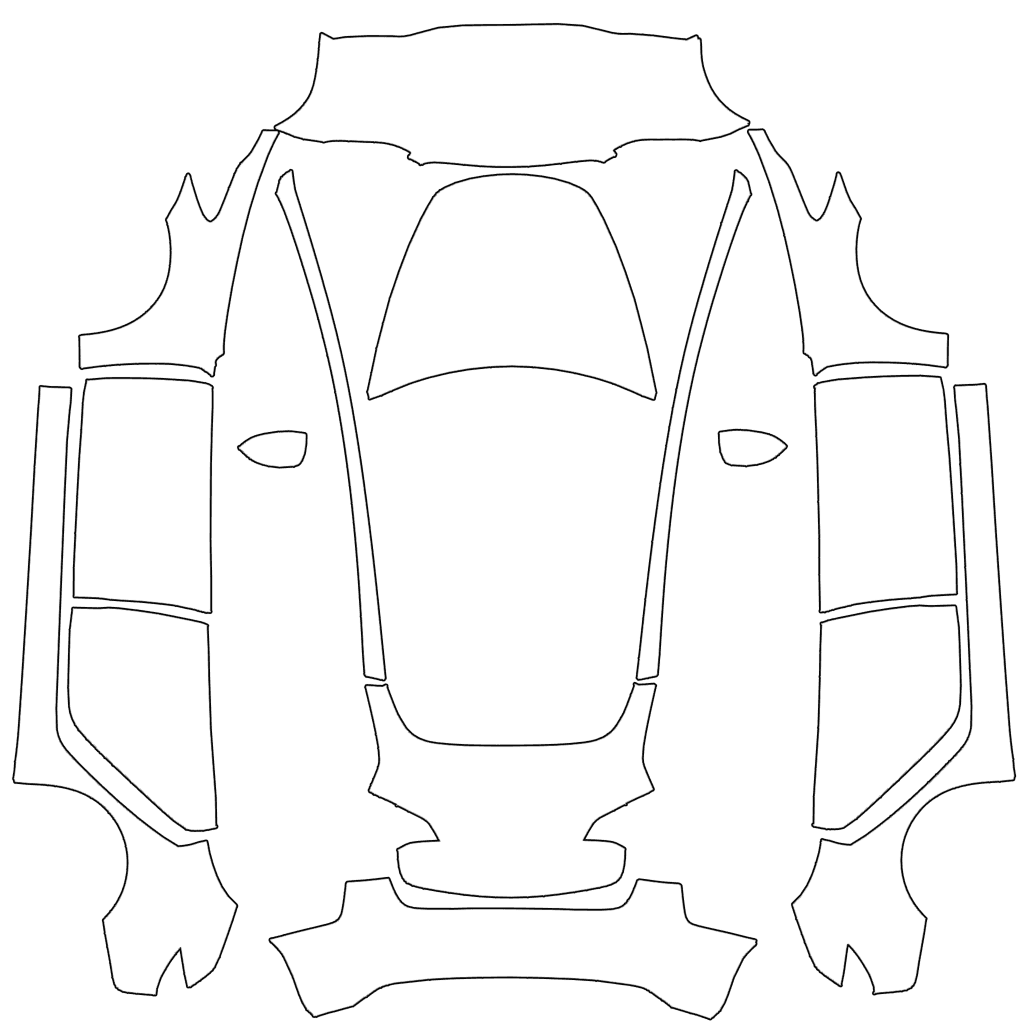
Model 3
2017 to 2023 cars, before the 2024 refresh
1024x1024 PNG
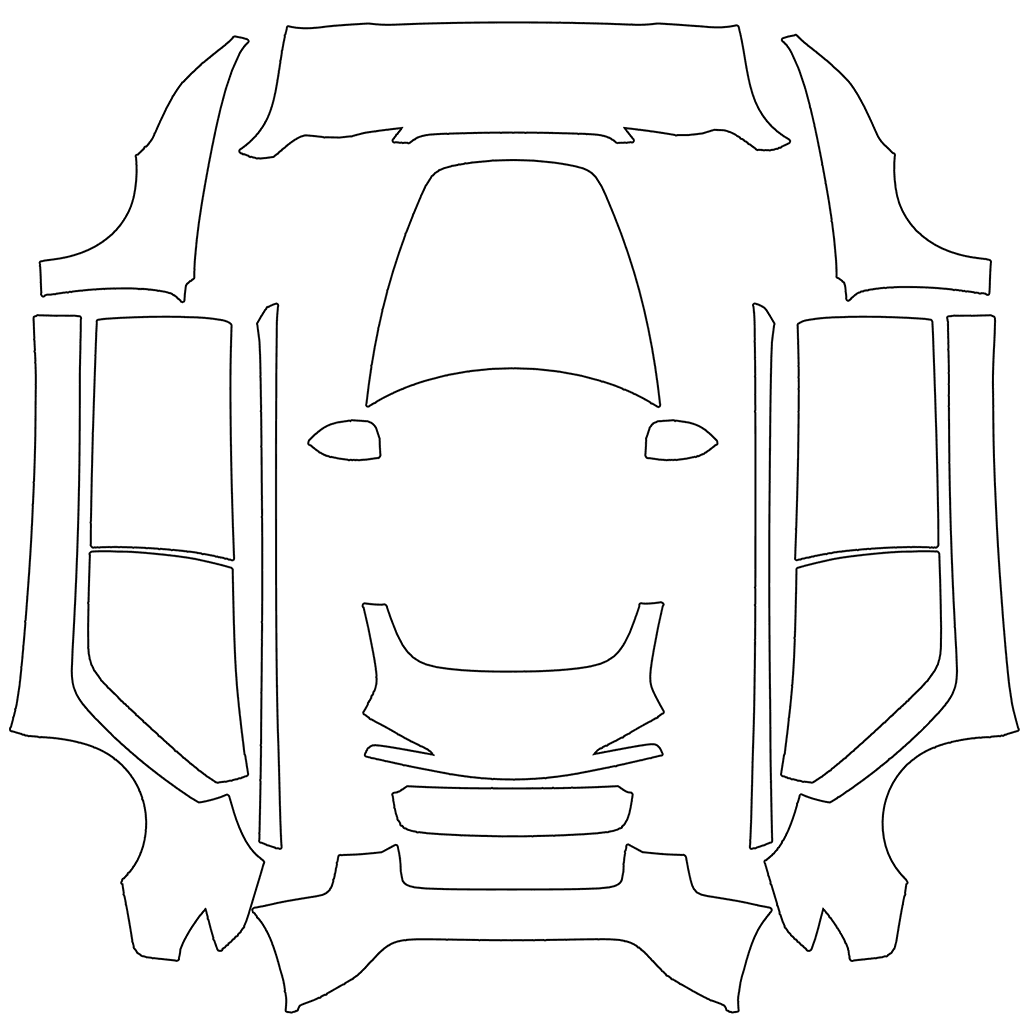
Model 3 Highland
2024 and newer, Standard and Premium
1024x1024 PNG
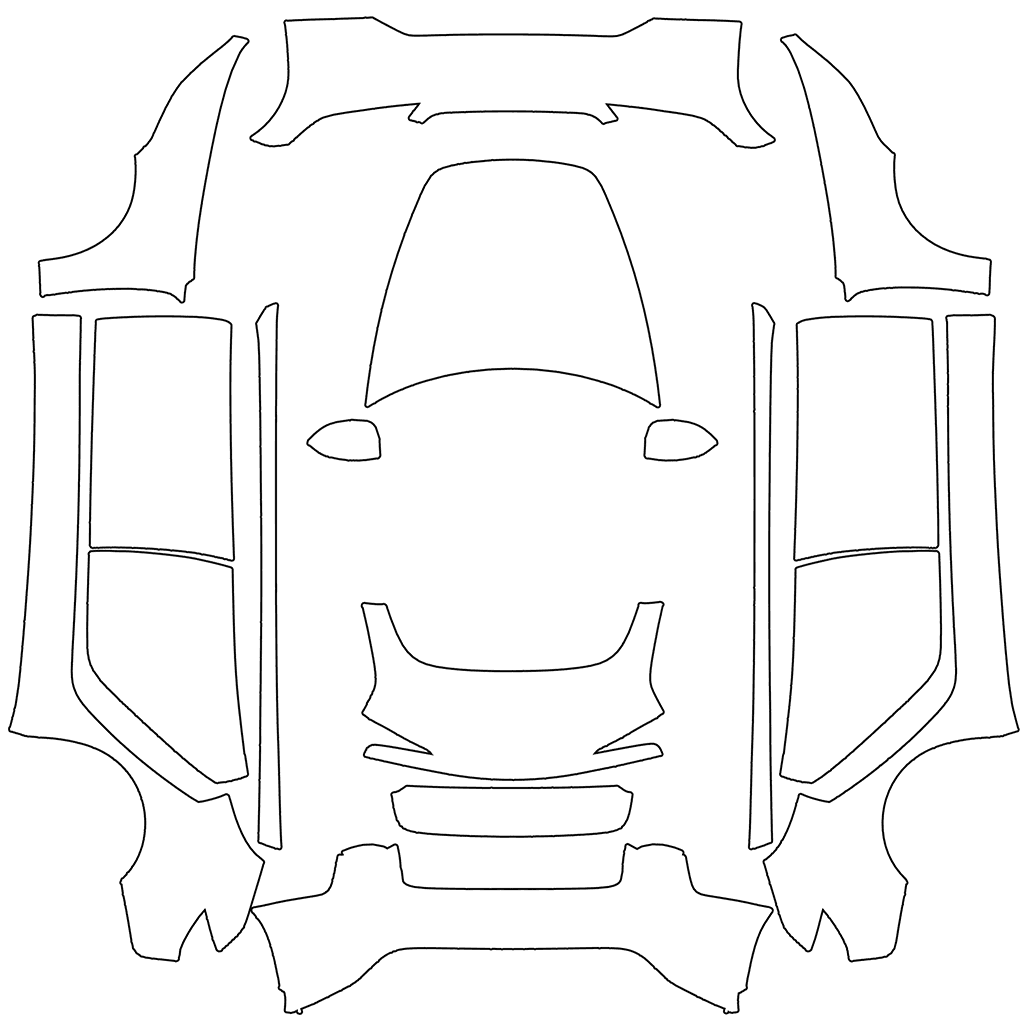
Model 3 Highland Performance
2024 and newer Performance
1024x1024 PNG
Model Y templates
Not sure which one? The Tesla Model Y wrap template guide explains every version.
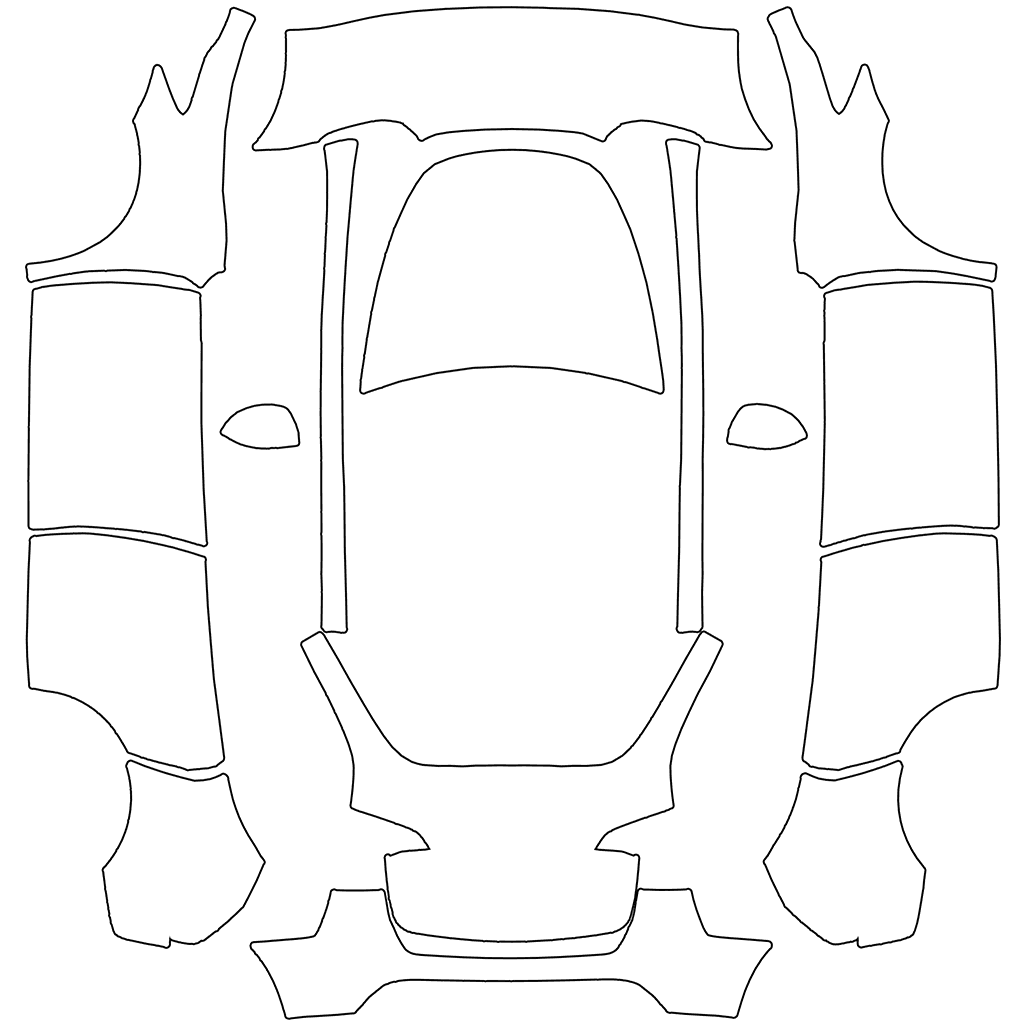
Model Y
2020 to 2024 cars, before the 2025 refresh
1024x1024 PNG
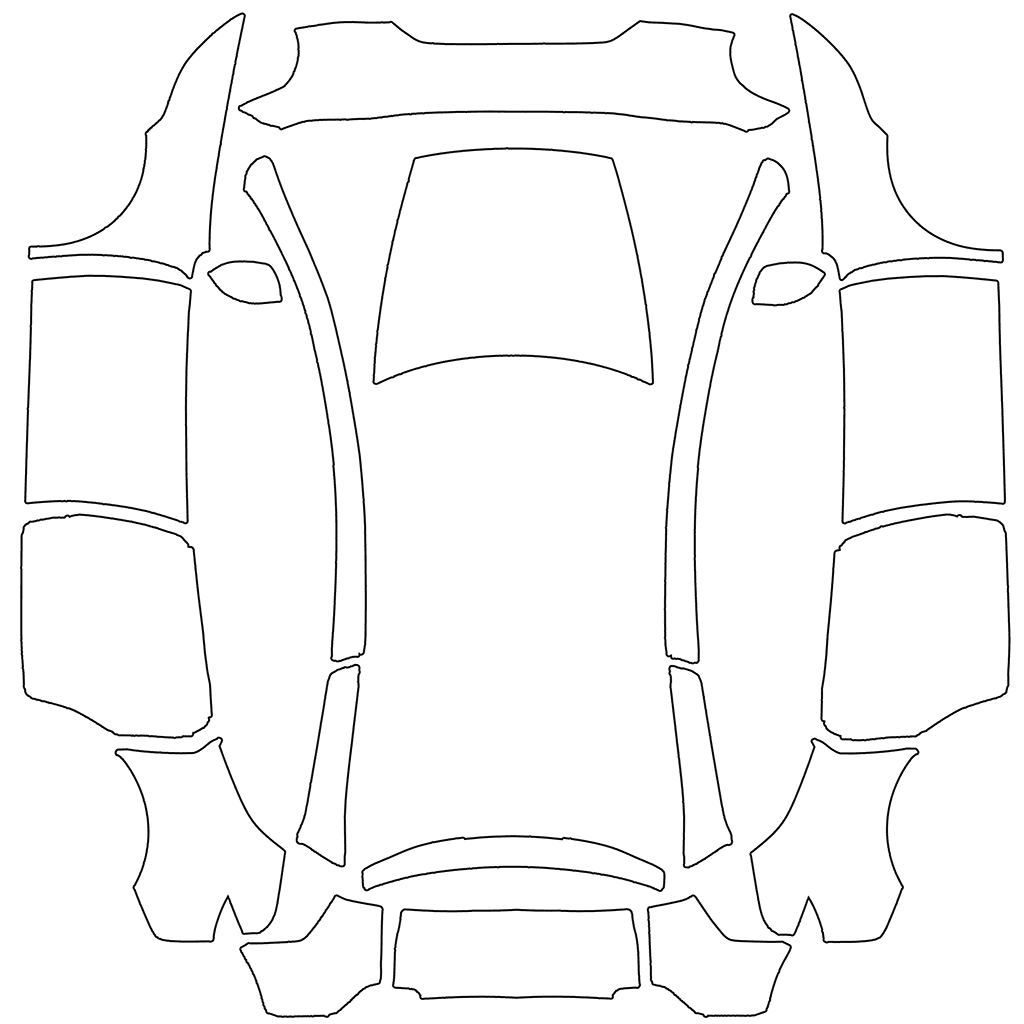
Model Y L
The three-row Model Y L
1024x1024 PNG
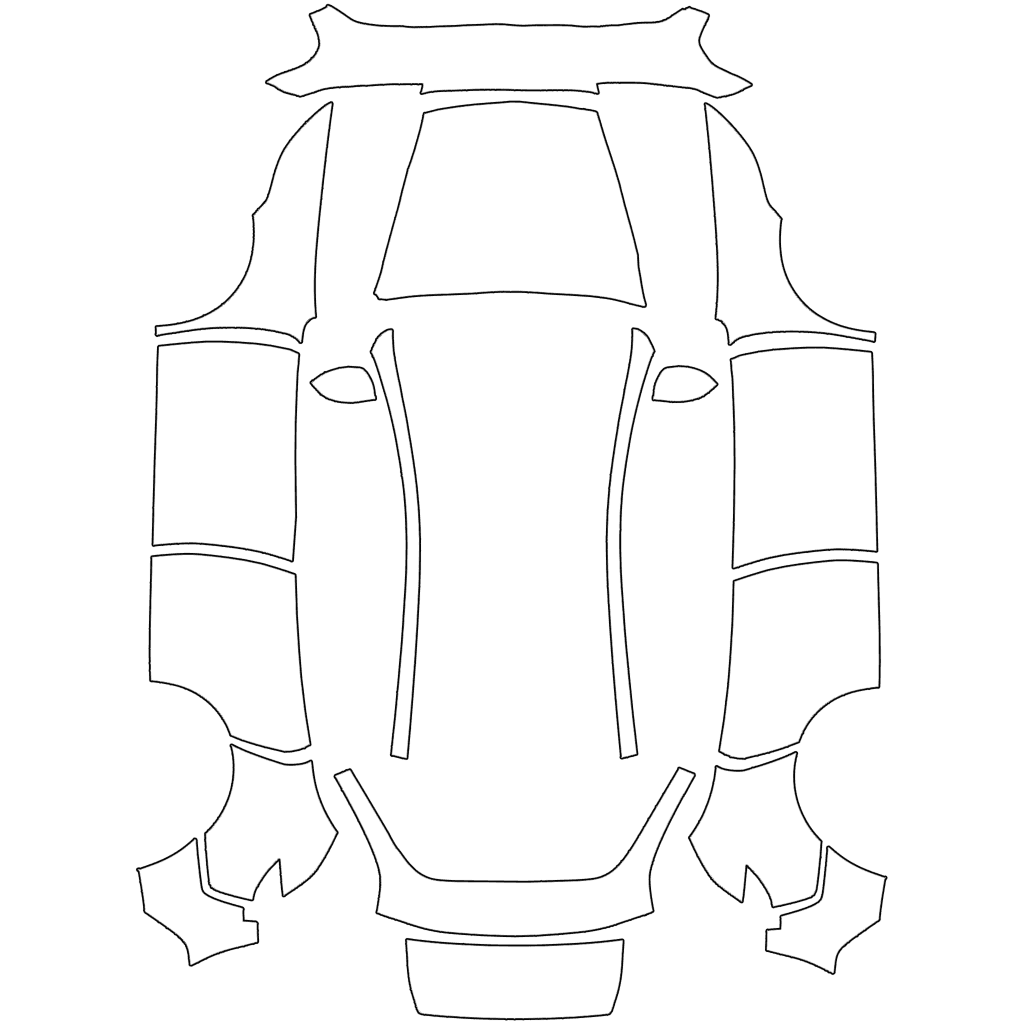
Model Y Juniper Standard
2025 and newer Standard
1024x1024 PNG
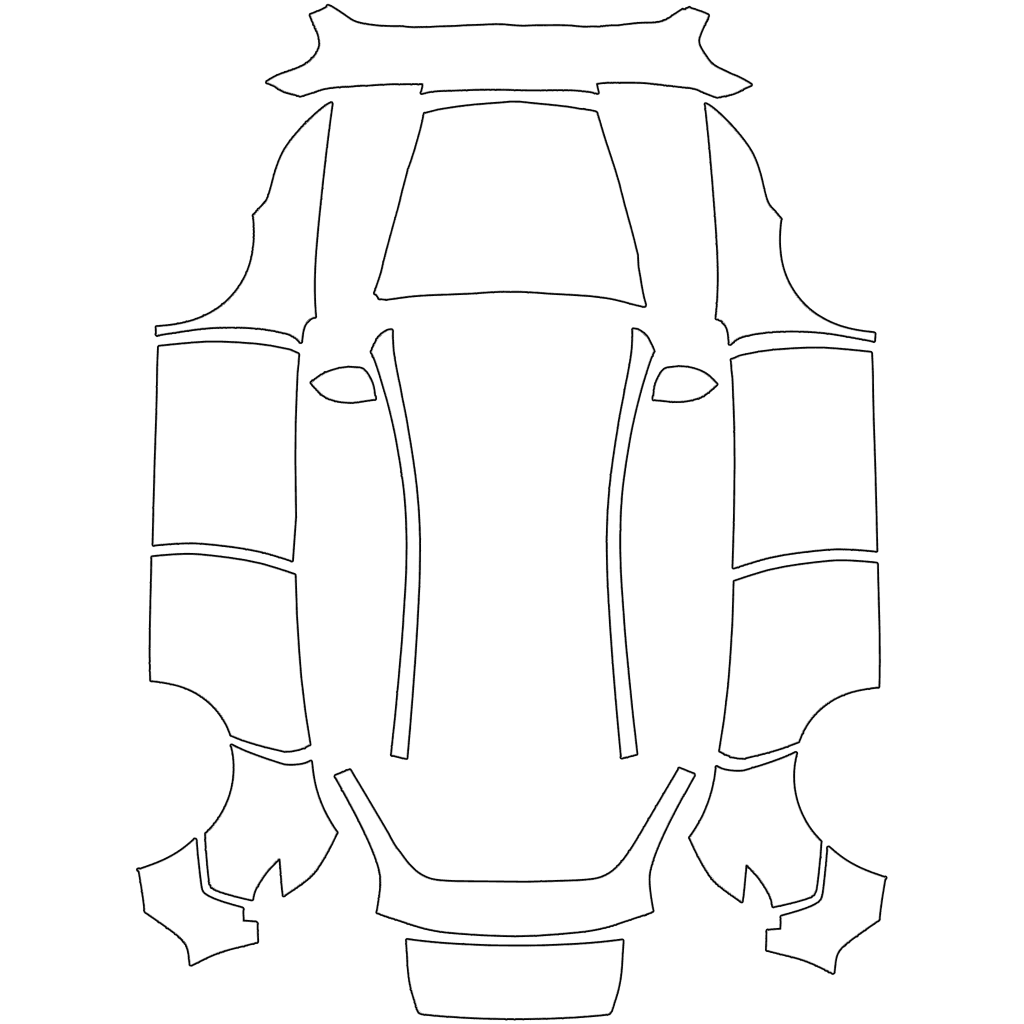
Model Y Juniper Standard AWD
2025 and newer Standard AWD
1024x1024 PNG. Uses the same file as the Standard template.
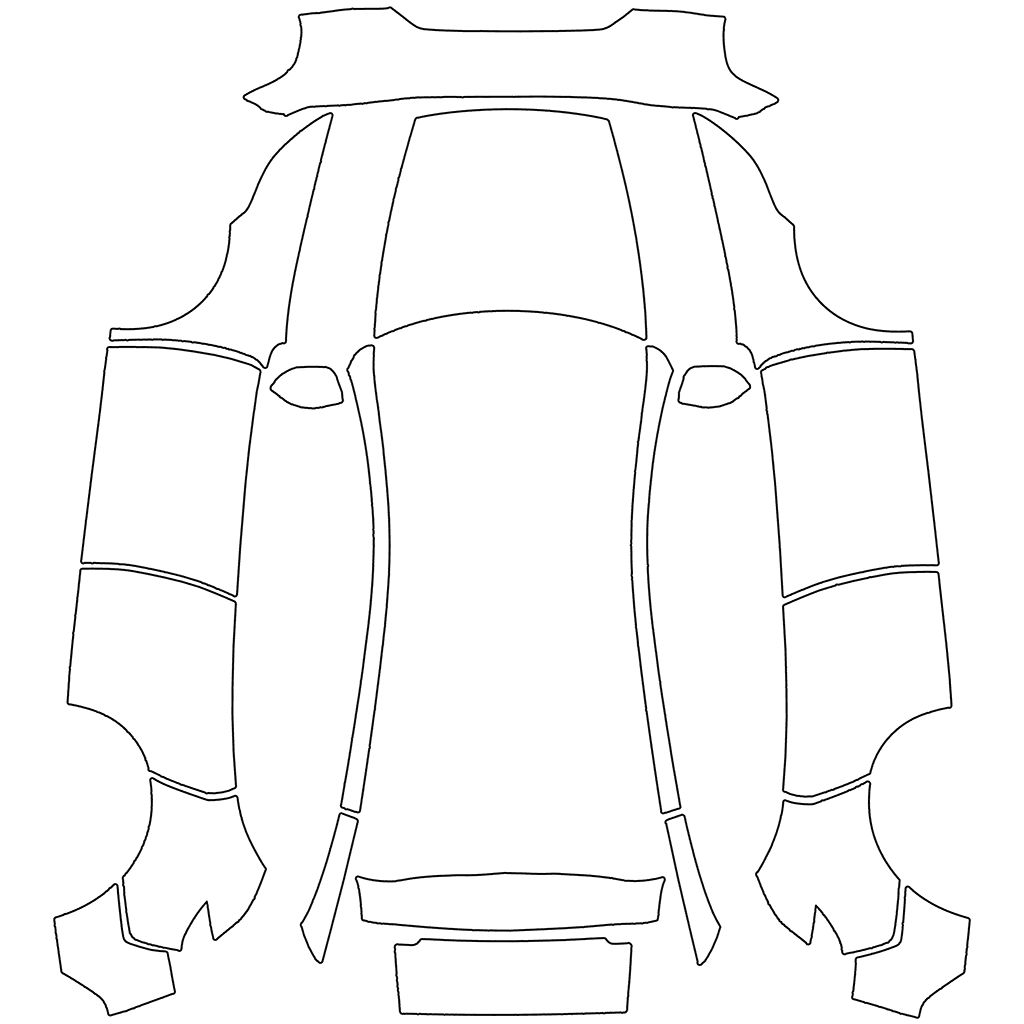
Model Y Juniper Premium
2025 and newer Premium
1024x1024 PNG
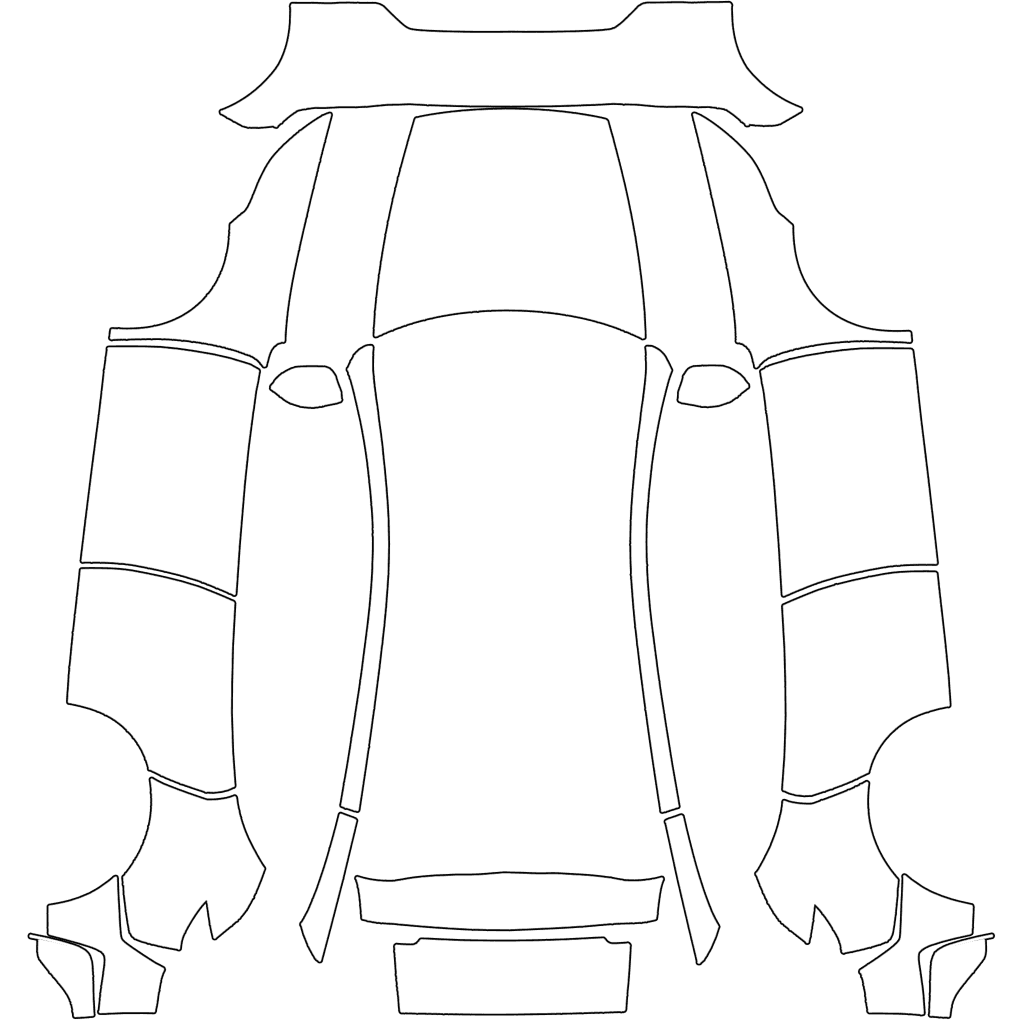
Model Y Juniper Performance
2025 and newer Performance
1024x1024 PNG
Cybertruck templates
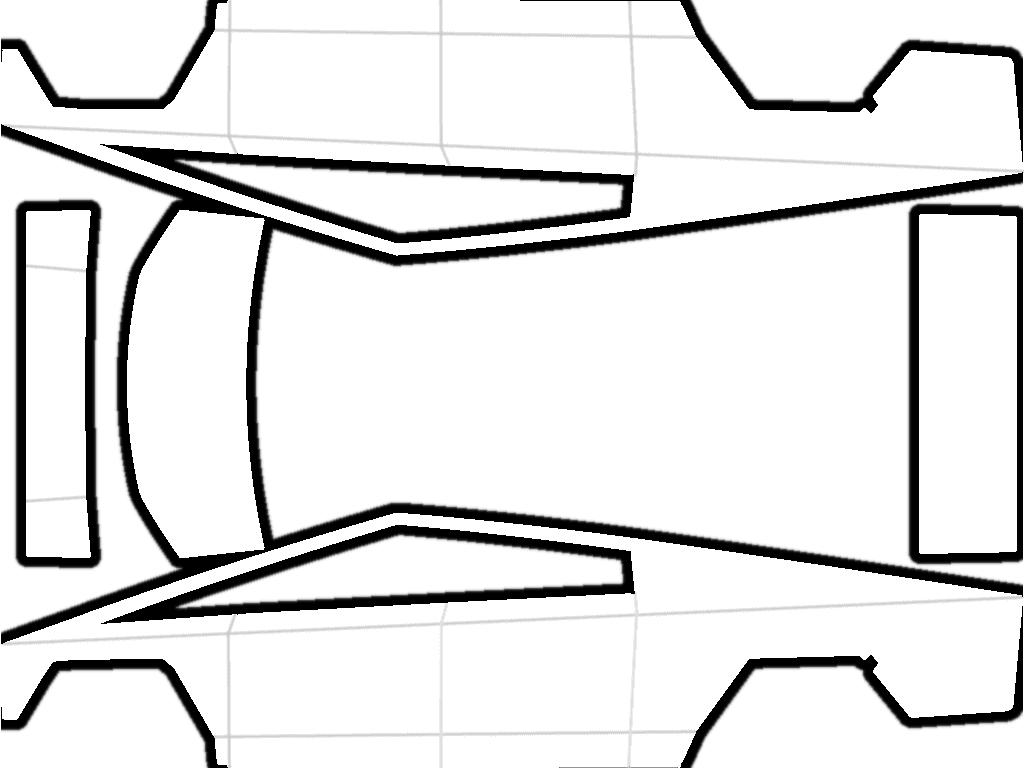
Cybertruck
Every Cybertruck
1024x768 PNG. The only landscape template: 1024x768, front on the left.
Model S templates

Model S
2021 and newer
1024x1024 PNG
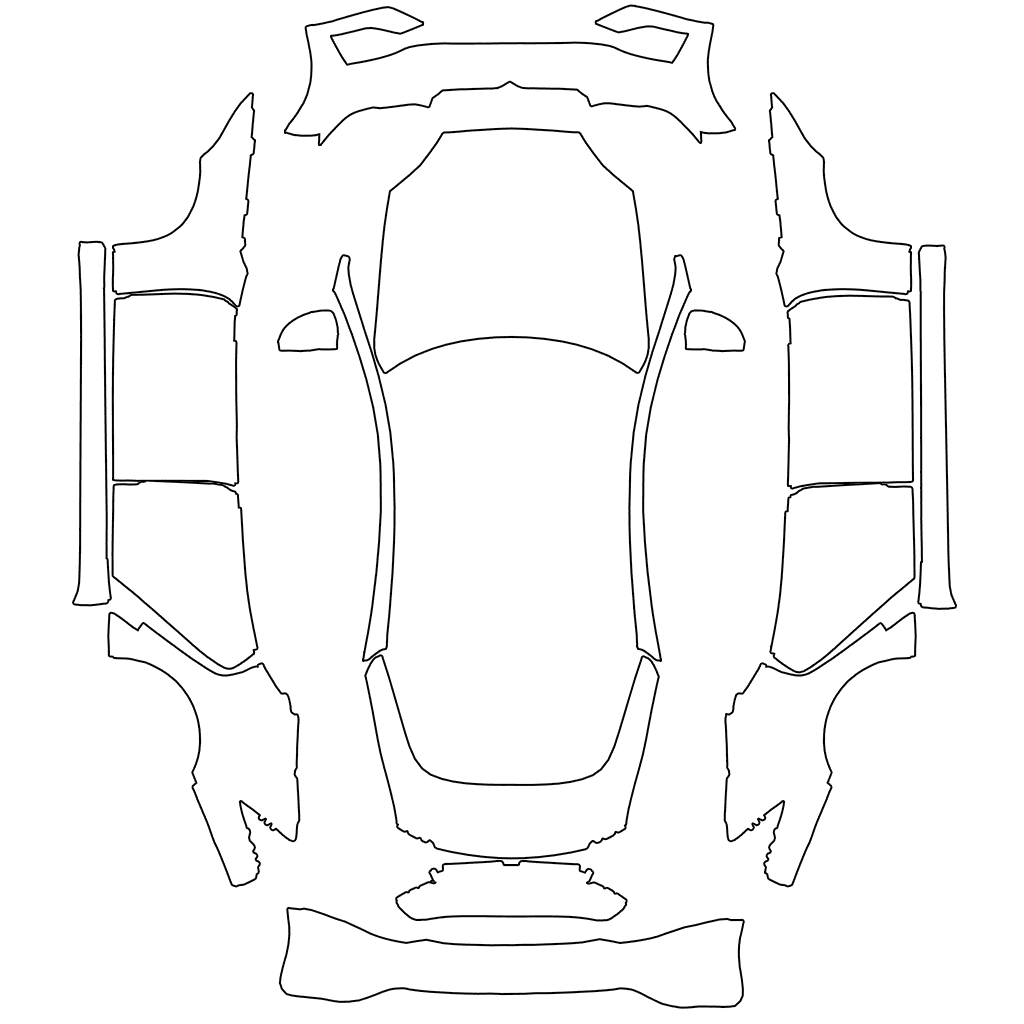
Model S Plaid
2025 and newer Plaid
1024x1024 PNG
Model X templates
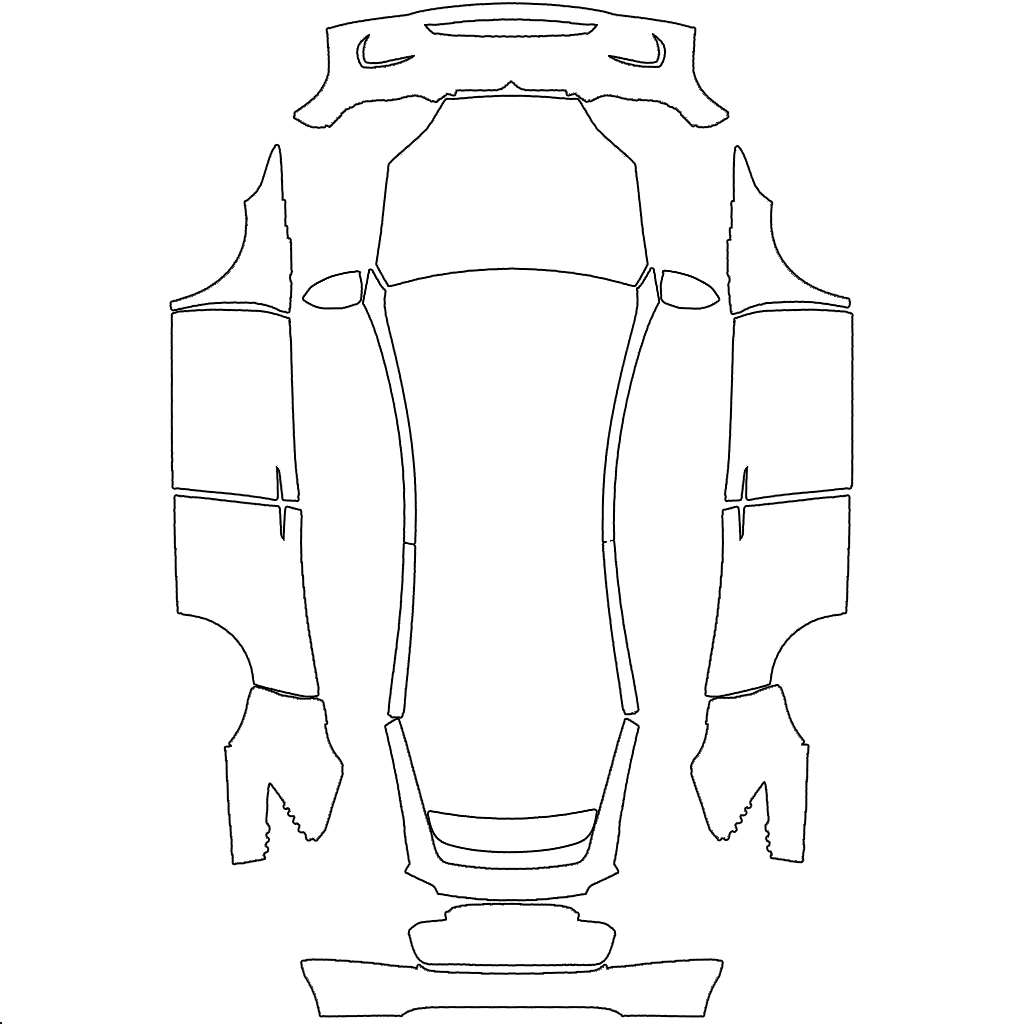
Model X
2021 and newer
1024x1024 PNG
Template outlines: Tesla's official wrap templates. FrunkLab is not affiliated with Tesla, Inc.
How to read a Paint Shop template
A template is the car peeled and laid flat, seen from above. Whatever you paint on each part of the image lands on the matching panel of the car on your screen. On every square template:
- Top: the front bumper and the hood
- Bottom: the trunk or liftgate and the rear bumper
- Left and right: the driver's side and the passenger side, unfolded outward
- Center: the roof and the glass, which the car draws as glass whatever you paint there
The Cybertruck turns that on its side: the front is on the left, the tailgate on the right, and the two sides run along the top and bottom edges.
One detail catches everyone the first time. Because the sides fold outward, anything that should read upright on a door has to face the center of the template, so a figure on the left door faces right. It looks rotated on the flat file and upright on the car, which is why it pays to check a design on the 3D car before you export it.
Tesla's rules for a wrap file
A wrap that misses any of these is simply not offered on the Wraps tab. Check a finished file in seconds with the free Tesla wrap file checker.
| File format | PNG only |
|---|---|
| Resolution | 512x512 to 1024x1024. Use your model’s template size: 1024x1024 for Model 3, Model Y, Model S, and Model X, 1024x768 for the Cybertruck |
| File size | Under 1 MB |
| Filename | Letters, numbers, spaces, underscores, and dashes only, up to 30 characters |
| How many | Up to 10 wraps from the mobile app plus 10 from a USB drive |
| Tesla app upload | Creations > Wrap > Upload. Needs Tesla app 4.59.1 or newer and car software 2026.26 or newer |
| USB drive | A folder named Wraps at the root of an exFAT, FAT32, ext3, or ext4 drive. NTFS is not supported |
| Where to apply it | On the car: Toybox > Paint Shop > Wraps |
From template to wrap in five steps
Step 1
Find your exact template
Match the version of your car with the table on this page. A template from another version still loads, but the panels will not line up.
Step 2
Download it or open it in the studio
Download the PNG from Tesla's page for your model, or skip the download and open the same template in the FrunkLab studio in your browser.
Step 3
Paint inside the outlines
Each outlined area is a body panel. Paint inside the outlines: anything outside them never reaches the car, and the glass in the middle is drawn as glass whatever you put there.
Step 4
Export a PNG Tesla accepts
Save a PNG at the template size, under 1 MB, with a filename of letters, numbers, spaces, underscores or dashes, 30 characters at most.
Step 5
Send it to the car
Upload it in the Tesla app under Creations > Wrap > Upload, or copy it into a folder named Wraps on a USB drive, then apply it on the car in Toybox > Paint Shop > Wraps.
Common template mistakes
- The wrong version. An original Model Y template on a 2025 Model Y, or a Standard template on a Performance. The bumpers and lights moved, so the ends of the design land in the wrong place.
- A JPG with a .png name. Paint Shop reads real PNG files only. Renaming a JPG or WebP does not convert it, and the car quietly skips it.
- A stretched template. Resizing a square template to a different shape, or squeezing a Cybertruck design into a square, shifts every panel. Keep the template shape and scale it evenly.
- A file over 1 MB. Photo-heavy designs go over without warning. Export at the template size, not larger.
- A long or fancy filename. Accents, emoji, dots and anything past 30 characters can keep a wrap off the Wraps tab.
- Sideways art on the doors. The sides are unfolded outward, so a figure or word that should read upright on a door has to face the center of the template.
Still not showing up? The Tesla Paint Shop troubleshooting guide covers every cause we have seen, and the Tesla Paint Shop guide explains the feature end to end.
Tesla wrap template FAQ
Where can I download Tesla wrap templates?
Tesla publishes its official Paint Shop wrap templates for free, one per vehicle version, and FrunkLab's templates page links each one straight to Tesla's own download. Every template is a PNG: 1024x1024 for Model 3, Model Y, Model S, and Model X, and 1024x768 for the Cybertruck. You can also skip the download and design on the same template in your browser.
Which wrap template fits my Tesla?
Match the version of your car, not just the model. Model 3 has one template for 2017 to 2023 cars and two for the 2024 refresh (Standard and Premium, and Performance). Model Y has one for 2020 to 2024 cars, one each for the 2025 Standard, Premium, and Performance, and one for the three-row Model Y L. Tesla labels the two Model S templates Model S (2021+) and Model S Plaid (2025+), and Model X and Cybertruck have one each. A template from a different version still loads, but the panels will not line up.
What size should a Tesla wrap PNG be?
Tesla accepts PNGs from 512x512 to 1024x1024 and under 1MB, and the best results come from using your model's exact template size. That is 1024x1024 for Model 3, Model Y, Model S, and Model X, and 1024x768 for the Cybertruck, which uses a landscape template. FrunkLab exports at the right size for whichever vehicle you picked, so there is nothing to resize or compress.
Can I edit a Tesla wrap template in Photoshop or Canva?
Yes. Open the template, paint on a layer above it inside the body outlines, hide the template layer, and export a PNG at the template size, under 1 MB, with a filename of letters, numbers, spaces, underscores, or dashes. The FrunkLab studio does the same in your browser, with a 3D preview of the result and an export that already meets Tesla's rules.
How do I check if my wrap PNG will work in Paint Shop?
Drop it into FrunkLab's free wrap file checker. It reads the file in your browser, so nothing is uploaded, and checks that it is a real PNG, between 512x512 and 1024x1024 in a square or Cybertruck shape, under 1 MB, with a filename Tesla accepts. If something is off it can rename the file, convert it to PNG, or shrink it proportionally and hand you a fixed copy. It never stretches a design into a new shape.
Why isn't my wrap showing up in Paint Shop?
Five things cause almost every failure. The car is below software 2026.26 or the app is below 4.59.1, so there is no Wrap tab. The file is not a PNG, is over 1MB, or is not between 512x512 and 1024x1024. The filename uses characters other than letters, numbers, spaces, underscores, and dashes, or runs past 30 characters. On USB, the folder is not named Wraps at the root of the drive, or the drive is NTFS, which Tesla does not read. Or you already have 10 wraps stored on that source and need to delete one first.
Skip the blank template
The gallery has hundreds of finished wraps already built on the right templates, free to download as Paint Shop PNGs. Or describe a look and let the AI Tesla wrap generator paint it onto your template.