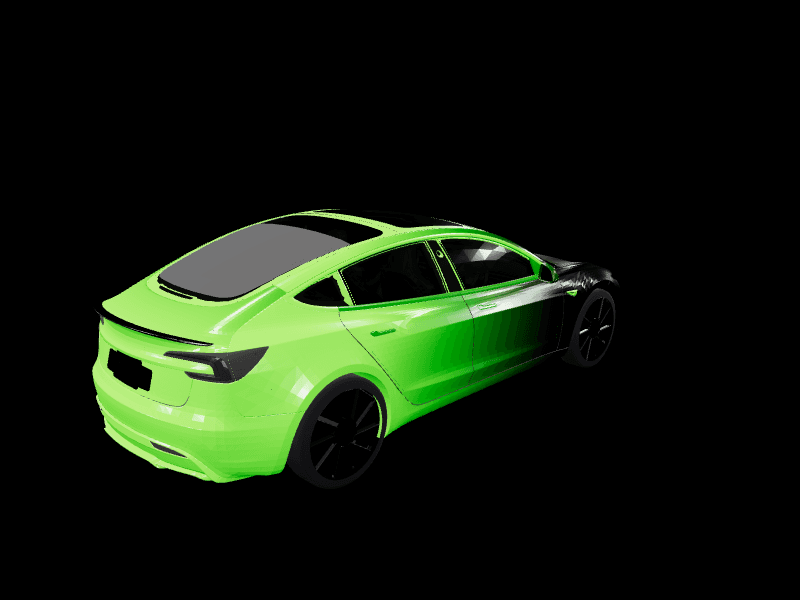
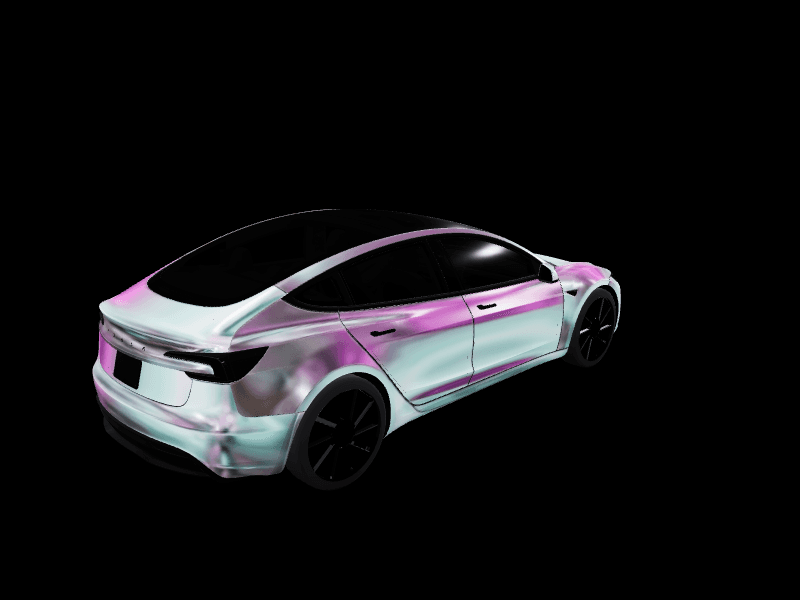
Tesla Model 3 wrap template: which one you need and how to use it
Every Model 3 has its own Paint Shop wrap template, and the Highland and the Highland Performance each moved the panels. Which template matches your Model 3, how the flat 1024x1024 layout maps onto the car, and how to go from a blank template to a wrap on your screen.
 By Dex Moreno, Guides editor7 min read
Quick answer: There are three Tesla Model 3 wrap templates: the original (2017 to 2023), the Highland (2024 and later) and the Highland Performance. Each is a 1024 by 1024 PNG. Download yours from our Tesla wrap templates page, or pick your Model 3 in the studio and it loads automatically.
A Tesla Model 3 wrap template is the flat 1024 by 1024 image that Tesla Paint Shop uses to paint your car's 3D model. Tesla unfolds the body into one square, and whatever you paint on each part of that square ends up on the matching panel of the car on your screen.
There isn't one Model 3 template, though. There are three, because the Highland refresh and the Highland Performance each reshaped the ends of the car, and a wrap made on the wrong one lands shifted at the nose or the tail. This guide covers which template you need, how to read it, and the quickest route from a blank template to a wrap on your Model 3.
Download the blank Model 3 template
All three Model 3 templates are on our Tesla wrap templates page, with a preview of each, a link to Tesla's official template file, and a button that opens it in the studio. Use the download if you design in Photoshop, Procreate or Canva. If you'd rather skip the file handling, pick your car in the studio and the template is already there, outline and no-paint areas included. Driving a Model Y instead? The Tesla Model Y wrap template guide covers all five of its templates.
Which Model 3 template do you need?
Pick by the version of your car:
| Your Model 3 | Template to use | Name in the studio |
|---|---|---|
| Original Model 3, 2017 to 2023 | Model 3 (original) | Model 3 Pre-2024 (Original) |
| Model 3 Highland, 2024 and later | Model 3 Highland | Model 3 Highland Base |
| Model 3 Highland Performance | Model 3 Highland Performance | Model 3 Highland Performance |
Every Model 3 template is 1024 by 1024 pixels.
The quick way to tell them apart: the original Model 3 has a rounded nose with fog-light pockets in the front bumper. The Highland has slimmer headlights, a smooth, low nose with no fog-light pockets, and new taillights. The Highland Performance adds its own front bumper with larger intakes and a sportier rear, which is why it gets a separate template even though it's also a Highland. Our Model 3 Highland wraps guide has more on how the two Highland files differ.
How to read the template
The template looks like the car was peeled and laid flat, seen from above. The layout follows the same idea on every square Tesla template:
- Top of the square: the front bumper and hood
- Bottom: the trunk lid and rear bumper
- Left side: the driver's side doors and fenders
- Right side: the passenger side
- Center: the roof and glass, which the car draws as glass whatever you paint there
On a Model 3 that center area is big, because most Model 3s have a roof that is almost all glass. A stripe that runs over the roof reads as broken in the middle, so designs that treat the hood and trunk as two ends of one idea look more deliberate.
One detail catches everyone the first time. The sides are unfolded outward, so anything you want upright on the car's side needs to face the center of the template. A figure on the left door should face right, and one on the right door should face left. It looks rotated on the flat file and upright on the car.
Step 1: Pick your exact Model 3
Open the studio and choose your Model 3 from the vehicle list. The studio loads the matching template with the body outline, the panel lines and the no-paint areas in place, so you can't paint onto the glass by accident.
Step 2: Start the design
You have three ways in. Fill the body with a color or a gradient, upload an image or a pattern, or describe the design to the AI Tesla wrap generator in plain words, like "satin silver with two wide black stripes from the hood to the trunk." The Model 3's long, clean side suits stripes and liveries better than any other Tesla, and our tutorial on AI wrap prompts has phrasing that works well.
Step 3: Check it on the 3D car
Open the 3D preview and spin the car. Check the nose, the trunk lid and both doors. If something lines up wrong, it is almost always a design that assumed the car was a flat rectangle. Move it on the template and look again. The 3D preview tutorial covers what to check.
Step 4: Export the PNG
Save the design and download the wrap. The studio exports a PNG at the template size, under 1 MB, with a filename of letters, numbers and dashes. Tesla caps filenames at 30 characters, so shorten a long design title before you upload it.
Step 5: Send it to your Model 3
In the Tesla app, go to Creations > Wrap > Upload and pick the PNG. You'll need Tesla app 4.59.1 or newer and car software 2026.26 or newer. On older software, copy the file into a folder named Wraps at the root of a USB drive formatted exFAT, FAT32, ext3 or ext4 (not NTFS), plug it in, and open Toybox > Paint Shop > Wraps. Our tutorial shows how to upload a wrap from the Tesla app, with a screenshot for every tap.
Common template mistakes
- Using the original template on a Highland. The bumpers and lights moved, so the ends of the design land in the wrong place. Match the table above.
- Using the Highland template on a Highland Performance. Close, but the front bumper is different, and designs with hard edges near the nose show it.
- Saving as JPG. Paint Shop only reads PNG files.
- A file over 1 MB. Big photographic designs can go over. Re-export at the template size, not larger.
- Special characters in the filename. Stick to letters, numbers, spaces, underscores and dashes, up to 30 characters.
If a wrap still won't show up, the Paint Shop troubleshooting guide covers every cause we've seen.
Skip the template entirely
You don't have to start blank. The gallery has more than 130 finished Model 3 wraps, already built on the right templates, that download as ready-to-use PNGs. The Model 3 wrap ideas guide picks the best by style, and the Tesla Model 3 wraps page shows the most popular ones with links by style. Any of them can be opened in the studio and changed. Designing and downloading are free; the pricing page only covers extra AI wraps.
Pick your Model 3, then open the studio and the right template is already waiting.
Frequently asked questions
Where do I get the Tesla Model 3 wrap template? Our Tesla wrap templates page links Tesla's official template for every Model 3 version, and the FrunkLab studio has the same templates built in. Picking your car in the studio loads the right one automatically.
What size is the Model 3 wrap template? Every Model 3 template is 1024 by 1024 pixels. Paint Shop accepts PNG files from 512 by 512 up to 1024 by 1024, under 1 MB.
Is the Model 3 Highland template different from the original? Yes. The Highland has a new nose, slimmer headlights and new taillights, so it uses its own template, with a separate one for the Highland Performance. A wrap made on the original template won't line up on a Highland.
Why does my wrap look shifted on my Model 3? Usually because it was made on another version's template, most often an original Model 3 file on a Highland. Build it on your exact Model 3 template and export at 1024 by 1024.
Can I use the Model 3 template in Photoshop or Canva? Yes. Open the template, paint on a layer above it inside the body outline, hide the template layer and export a PNG under 1 MB. The studio does the same thing with the outline, the 3D check and the export handled for you.
Put a custom wrap on your Model 3
Community designs, free to download, or make your own in the browser.