Writing AI wrap prompts that actually work
Our AI generator responds well to specific texture and palette prompts. It fumbles legible text and brand logos. Here's the playbook.

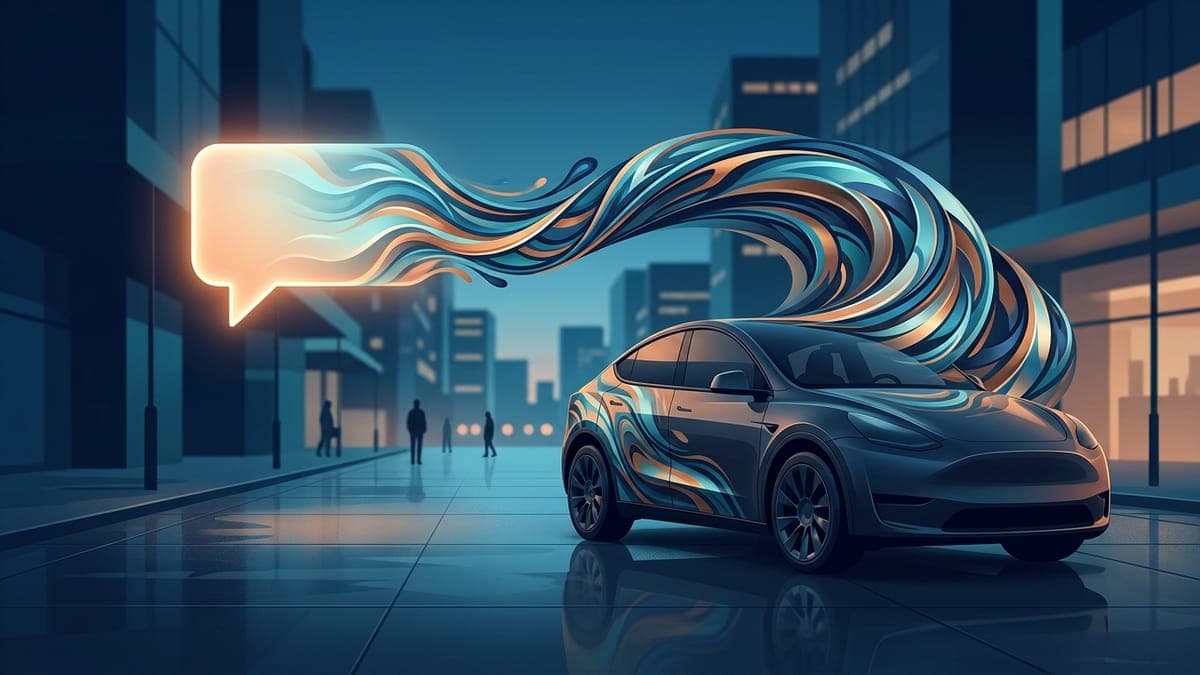
The AI Tesla wrap generator on FrunkLab is good at textures, palettes, and abstract patterns. It's bad at legible text, recognizable logos, and faces. Knowing which side of that line your prompt sits on saves you generations.
Each AI run takes a few seconds and counts against your monthly quota (3 on free, up to 50 on Pro; see pricing for the full breakdown). Wasted generations on prompts the model can't satisfy add up fast. This guide is the prompting playbook we wish every user got on day one.
The prompt structure that works
After watching thousands of generations land in the gallery, one prompt structure produces usable wraps far more often than any other.
[Subject] + [Texture/material] + [Palette] + [Style modifier]
Open the studio, pick a vehicle, click the AI panel, and try this template:
"Topographic map pattern, fine line work, deep navy and gold palette, vector illustration style"
That's all four pieces. Subject (topographic map), texture (fine line work), palette (deep navy and gold), style (vector illustration). The AI hits this consistently because each piece is concrete.
Compare to a vague prompt:
"Something cool for my Model 3"
The model has no anchor. You get four wildly different generations with no through-line, you've burned four credits, and you still don't have a wrap.
Five prompts that work and what they produce
These are real prompt patterns that consistently produce wraps people end up exporting. Try them, then mutate them.
1. Topographic map
"Topographic contour map pattern, thin lines, white on dark forest green background, technical drawing style"
Produces a clean repeating contour pattern that wraps well around panel curves. The thin lines hold up at the in-car display size. Works on any vehicle. One of the highest-success-rate prompts we see.
2. Aurora gradient
"Aurora borealis gradient, smooth wash of teal green into purple into deep blue, soft edges, abstract"
Produces a horizon-line gradient that looks great on the Model 3 and Model Y (curves help the gradient feel natural) and is a bit harsher on the Cybertruck's flat panels. The keyword "smooth wash" is doing a lot of work; without it the AI sometimes paints discrete bands.
3. Carbon fiber texture
"Carbon fiber weave texture, tight diagonal pattern, matte black, photo-realistic material"
Produces a believable carbon-fiber surface. Works on every model. Pair with a small accent color elsewhere and you've got a tasteful sport-trim look in two generations.
4. Synthwave grid
"Retro synthwave grid horizon, magenta and cyan, sun setting behind perspective grid, 1980s vector poster style"
The "1980s vector poster style" anchor is critical. Without it the AI interprets "synthwave" as a generic glow and you get a fuzzy gradient. With it you get the actual grid-and-sun pattern. Lands best on the Cybertruck because the flat panels echo the poster aesthetic.
5. Wood grain inlay
"Walnut wood grain texture, rich brown with subtle amber highlights, natural material, close-up photography"
Produces a believable wood surface. The pivot from "close-up photography" to "close-up illustration" or "close-up render" changes the output dramatically; if the first version looks too photographic, swap the modifier.
What NOT to ask for
Some prompts will burn your generations no matter how you phrase them. The AI can't reliably do these things, and the studio's automatic cleanup can't rescue them.
Don't ask for legible text
"A wrap that says LUDICROUS in bold white letters on black"
The AI will produce text. The text will look like text from 30 feet away. Up close it'll spell "LUDIRCOUS" or "LUDICROAS" or some other near-miss. Image diffusion models can't reliably render letterforms. If you want text on your wrap, add it in the studio's text tool after the AI generation lands. The text tool produces actual typography, not pixel-soup approximations of it.
Don't ask for brand logos
"Tesla logo and the Cybertruck logo in chrome"
Two reasons this fails. One, the AI won't reproduce trademarked logos cleanly (and you shouldn't be putting them on a wrap you publish anyway). Two, the same letterform problem hits any logo with text in it. Use the shape tool to build symbolic elements, not the AI.
Don't ask for human faces or celebrity likenesses
The model is trained to decline most of these requests, and the ones it accepts produce uncanny-valley results that look terrible at any size. If your dream is a wrap with Elon's face on it, FrunkLab is not where you build that.
Don't ask for photo-realistic scenes
"A photograph of a forest taken at sunset with golden hour light through the trees"
You'll get a beautiful forest photo. It will not look good wrapped on a car. Top-down wraps don't read as "scenes"; they read as textures and palettes. The forest collapses into a brown-and-green blur on the in-dash display. If you want a forest vibe, ask for "forest canopy pattern from above, layered greens and browns" instead.
Don't fight the no-go zones
The AI templates have BLACK areas that mean "no wrap here" (windows, lights, panel gaps) and WHITE areas that mean "wrap goes here." If you ask for a design that conceptually requires the windows (a "stained glass window wrap"), the AI doesn't know the windows aren't its canvas. It paints anyway, the studio re-clears the no-go zones, and you get a half-finished design.
Ask for designs that work on the body panels. The windows and lights are not part of the deal.
Why iteration is normal
Plan on 2-5 generations per design you actually export. This isn't a defect; it's how diffusion image models work. The model interprets your prompt slightly differently each time. The first generation is rarely the best one.
The pattern that works for most users: write your prompt, run it, look at the result, change one word, run again. Don't rewrite the whole prompt; mutate it. "Deep navy and gold" comes back too cool? Try "deep navy and warm gold." Still too cool? Try "deep navy with brass accents." Each small mutation lets you steer.
Save the generations you might want as drafts. The studio keeps them. You can come back tomorrow, compare three drafts side by side, and pick the one that ages best in your eyes.
The no-go-zone safety net lets you be loose
There's one place you can be sloppy and still get a clean wrap: the no-go zones.
Every AI generation is automatically cleaned up so the no-go zones (panel gaps, windows, lights) stay clear. The AI drifts into those zones maybe 5-10% of the time, and the studio clears them for you automatically. You don't have to engineer prompts that "respect the template." You just have to write prompts that produce a good texture; the cleanup handles the geometry.
This means you don't need to write prompts like "fill only the body panels of a Tesla Model 3, avoiding windows and lights, with a..." Just write "carbon fiber weave, tight diagonal pattern, matte black." The cleanup does the rest.
A quick prompt-debugging checklist
When a generation doesn't land, run through this list before burning another credit.
- Is your subject concrete? "Pattern" is vague; "topographic contour pattern" is concrete.
- Did you specify a texture? "Marble" beats "smooth"; "carbon fiber weave" beats "futuristic."
- Did you name the palette explicitly? "Forest green and gold" beats "earthy tones."
- Did you add a style modifier? "Vector illustration," "photo-realistic," "watercolor," "technical drawing." Each one steers the model meaningfully.
- Are you asking for something the AI can't reliably produce (text, logos, faces)? If so, add those in the studio after generation, not in the prompt.
Negative prompting (sort of)
The AI doesn't accept formal negative prompts. There's no "negative_prompt" field. You steer away from unwanted outcomes by being more specific about what you DO want.
Getting photo-realistic results when you wanted something flatter? Add "vector illustration style" or "flat 2D graphic" affirmatively. The model responds to positive constraints far more reliably than to negations.
Getting too much color when you wanted restraint? Name the restraint explicitly. "Limited two-color palette, navy and white only" works. "Not too colorful" does not.
A specific element keeps showing up (e.g., a horizon in every aurora prompt)? Use positive constraints that displace it. "Aurora pattern filling the full frame, no horizon" works better than "aurora without sky."
Prompts that fall apart on specific vehicles
Some prompts look great in 2D and fall apart on certain vehicles in 3D.
Detailed micro-patterns (fine repeating dots, hairline grids) read well on Model 3 and Model Y where curvature gives them context. On the Cybertruck's flat panels they look pixelated.
High-contrast gradient washes (pure black to pure white across 20% of the canvas) look smooth on curved bodies and band hard on the Cybertruck. For flat-panel rules, see designing for the Cybertruck.
After the generation lands
Once you have a wrap you like, the rest of the studio still applies. Add a thin accent line with the shape tool. Drop a small text element with the text tool (typography, not AI). Adjust the global color tone if the palette came out slightly off. The AI generation is the base layer, not the whole design.
If this is your first wrap, the 5-minute walkthrough covers the export side. For more context on where AI in-car customization is heading, see the 2026 trends guide.
Try a topographic prompt first. It's the highest-floor, lowest-effort win in the studio.
Put a custom wrap on your Tesla
Free community designs for every model, or make your own in the browser.


