Tesla Paint Shop
Updated
Custom wraps, the file Tesla actually accepts, how to get one onto the car, and what to check when it will not show up.
This is the on-screen Paint Shop in your Tesla's Toybox, not a body shop: nothing here touches your real paint.
What is Tesla Paint Shop?
Paint Shop is the personalization screen inside your Tesla's Toybox. Open Toybox > Paint Shop > Wraps and you can recolor the car shown on the display, tint its windows, restyle the license plate, and on the Wraps tab apply a custom PNG of your own. The design then appears wherever the car is drawn: the driving visualization, the charging screen, and your vehicle in the Tesla app.
Paint Shop arrived in Tesla's 2025 Holiday Update for Model 3, Model Y, and Cybertruck (the Cybertruck had custom wraps a year earlier), and reached Model S and Model X in the 2026 Spring Update. It changes nothing physical, costs nothing, and you can swap or remove a wrap whenever you like.
Paint Shop timeline
: 2024 Holiday Update (2024.44.25)
The Cybertruck gets custom wraps and license plates for its on-screen model, loaded from a USB drive, and Tesla publishes its official wrap templates.
: 2025 Holiday Update (2025.44.25)
Paint Shop arrives in Toybox on Model 3 and Model Y, with wraps, window tint and license plates. The Cybertruck gets new wrap options too.
: 2026 Spring Update
Model S and Model X get the full Paint Shop, custom wraps included.
: Summer Update (2026.26) and Tesla app 4.59.1
The Tesla app sends wraps to the car over the air: Creations > Wrap > Upload picks a PNG from your phone. USB still works as the fallback.
The full story is in Paint Shop is on every Tesla now and wrap upload from the Tesla app is live.
Tesla Paint Shop custom wrap requirements
Tesla is strict about the file, and a wrap that misses any of these is simply not offered on the Wraps tab. Every FrunkLab export already matches them, so there is nothing to resize or compress. Got a file from somewhere else? The free Tesla wrap file checker tests it against every rule below and fixes what it can, and the Tesla wrap templates page has the official template for each car.
| File format | PNG only |
|---|---|
| Resolution | 512x512 to 1024x1024. Use your model’s template size: 1024x1024 for Model 3, Model Y, Model S, and Model X, 1024x768 for the Cybertruck |
| File size | Under 1 MB |
| Filename | Letters, numbers, spaces, underscores, and dashes only, up to 30 characters |
| How many | Up to 10 wraps from the mobile app plus 10 from a USB drive |
| Tesla app upload | Creations > Wrap > Upload. Needs Tesla app 4.59.1 or newer and car software 2026.26 or newer |
| USB drive | A folder named Wraps at the root of an exFAT, FAT32, ext3, or ext4 drive. NTFS is not supported |
| Where to apply it | On the car: Toybox > Paint Shop > Wraps |
Two ways to load a wrap: the Tesla app or a USB drive
From the Tesla app (recommended)
Since the 2026 Summer Update the app sends wraps to the car over the air. Open Creations > Wrap > Upload, pick the PNG from your phone, check the 3D preview, then choose Upload & Apply Wrap or Upload Only. Needs Tesla app 4.59.1 or newer and car software 2026.26 or newer. No computer, no USB drive.
Full app walkthroughBy USB (older software)
Format a drive as exFAT or FAT32, create a folder named Wraps at its root, copy your PNGs in, and plug it into the car. NTFS drives are not read. Then open Toybox > Paint Shop > Wraps and pick your design.
Full USB walkthroughFree Tesla wraps for Paint Shop, by model
Community designs, free to download, already sized for each car's Paint Shop template.
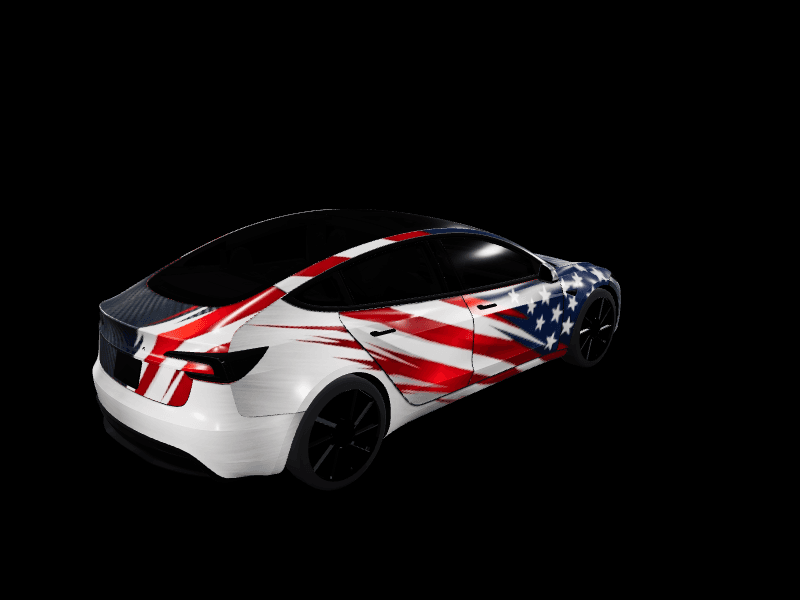
Tesla Model 3129 designs
All Model 3 wraps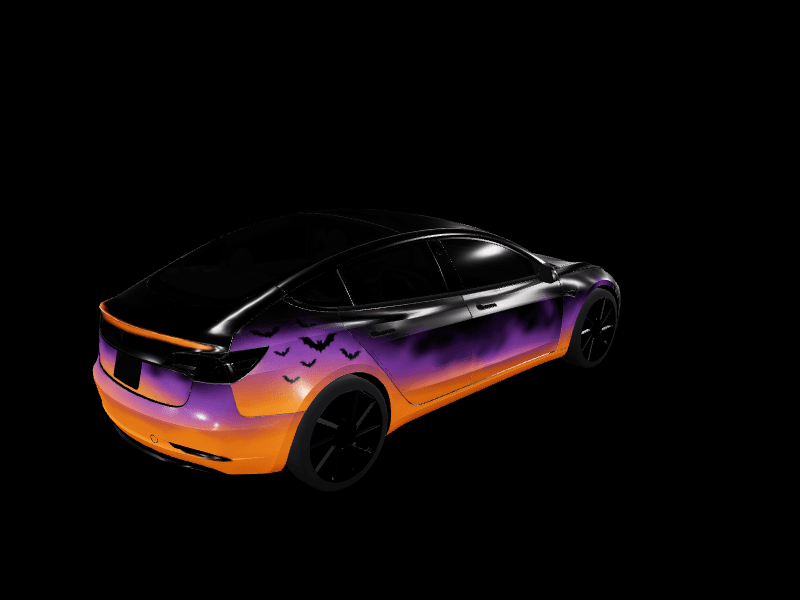
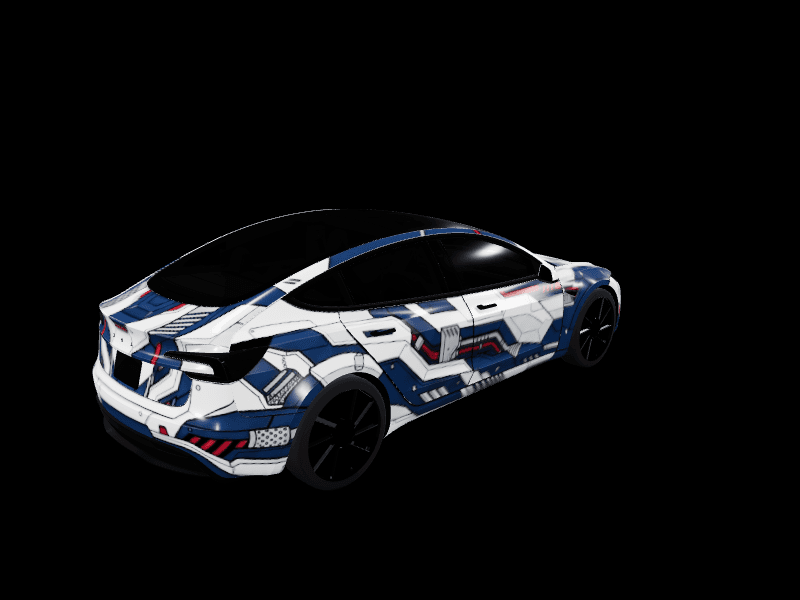


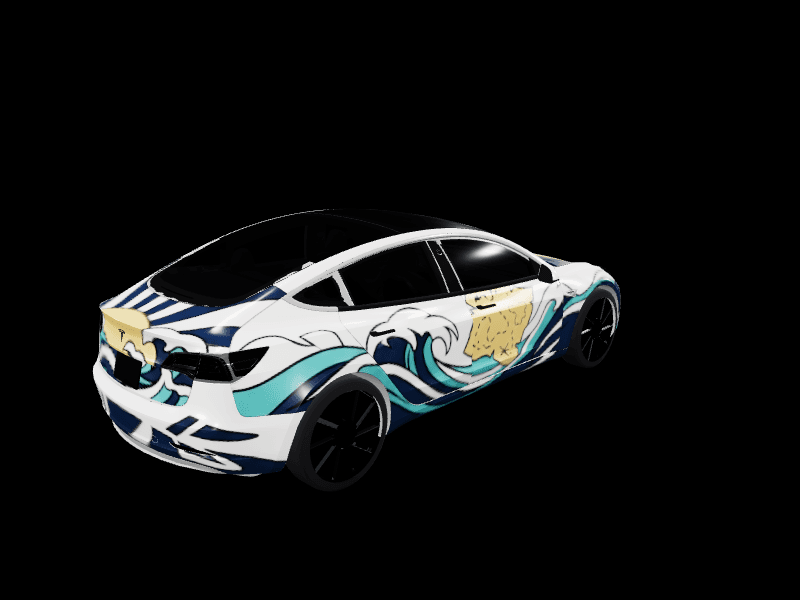

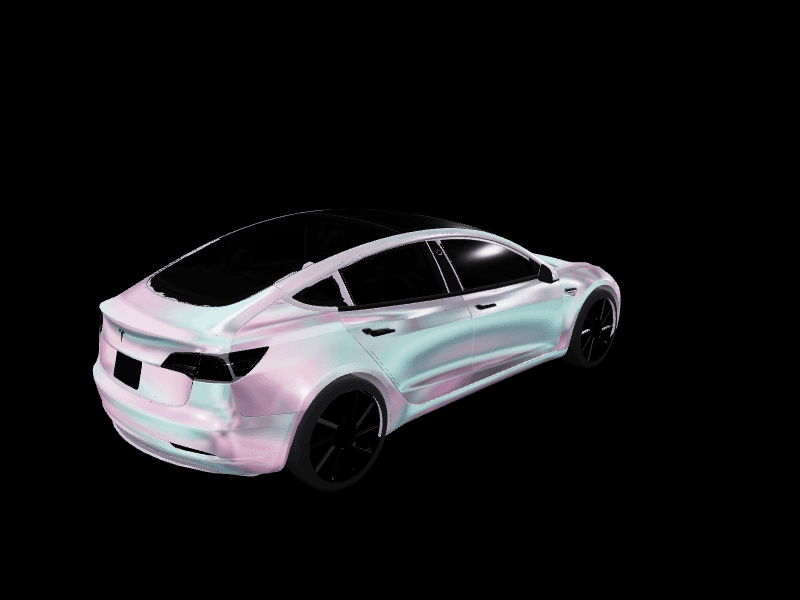
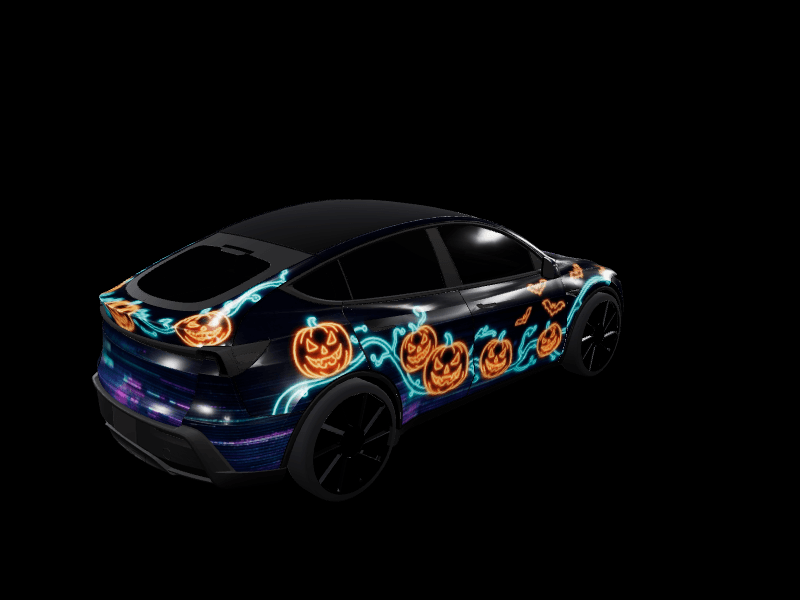
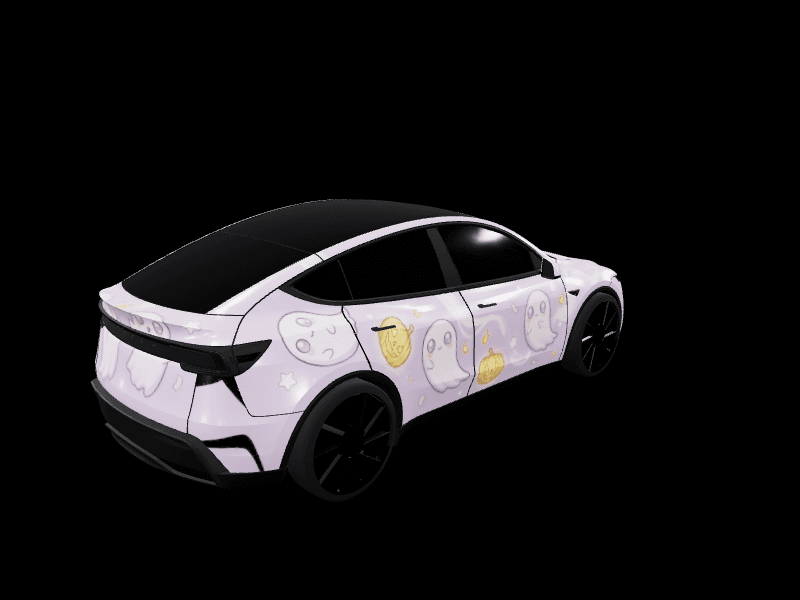
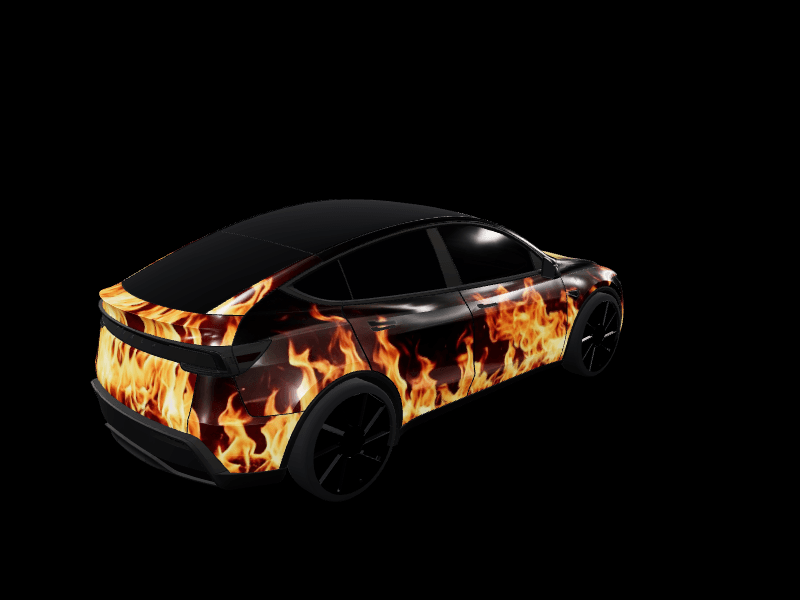
Tesla Model Y381 designs
All Model Y wraps



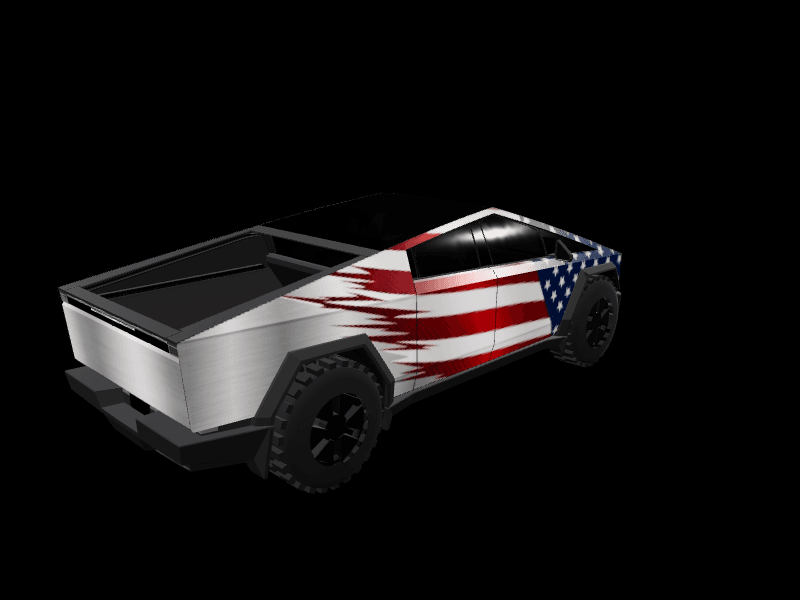
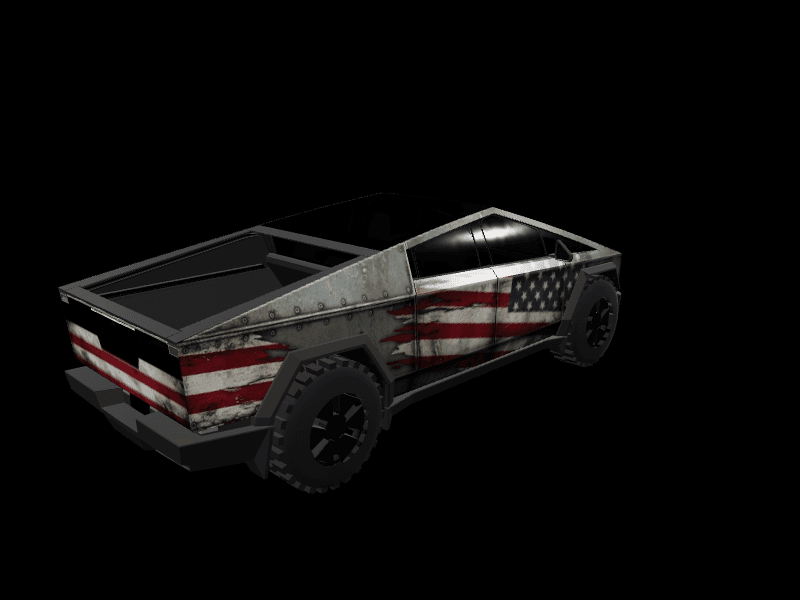
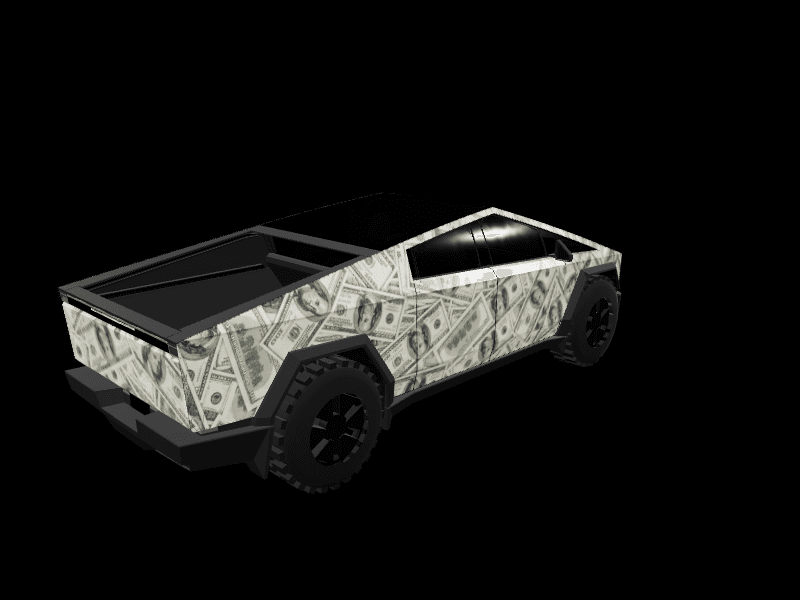
Tesla Cybertruck159 designs
All Cybertruck wraps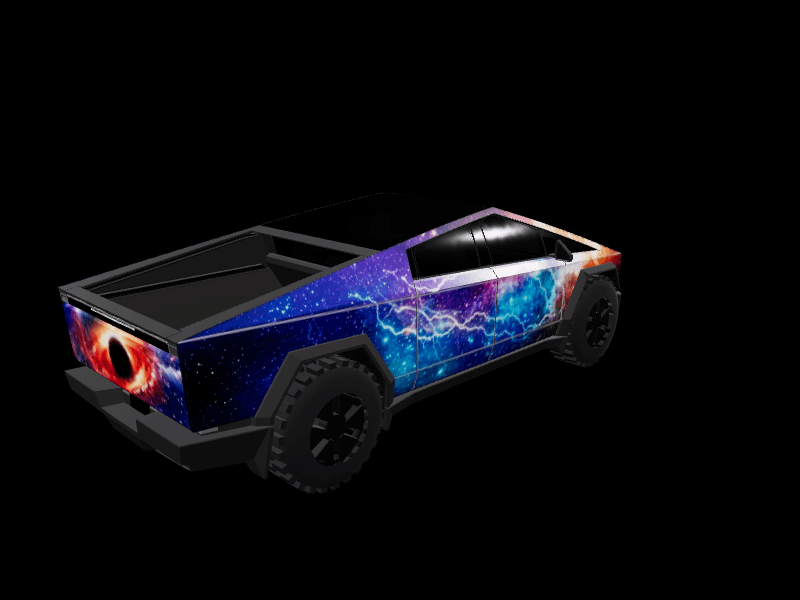


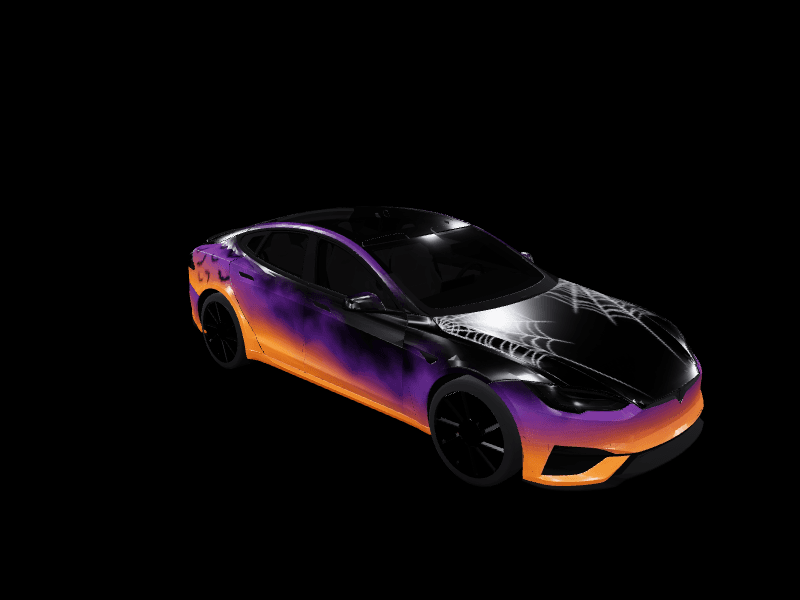
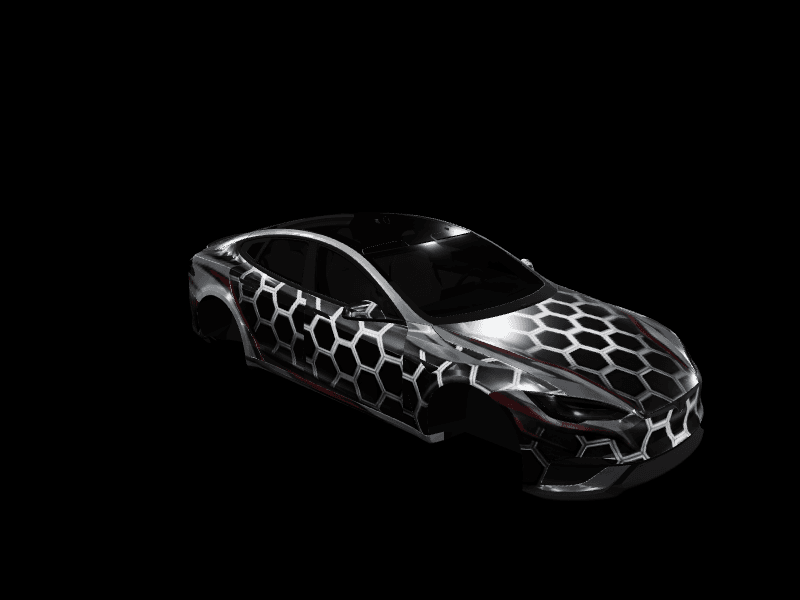
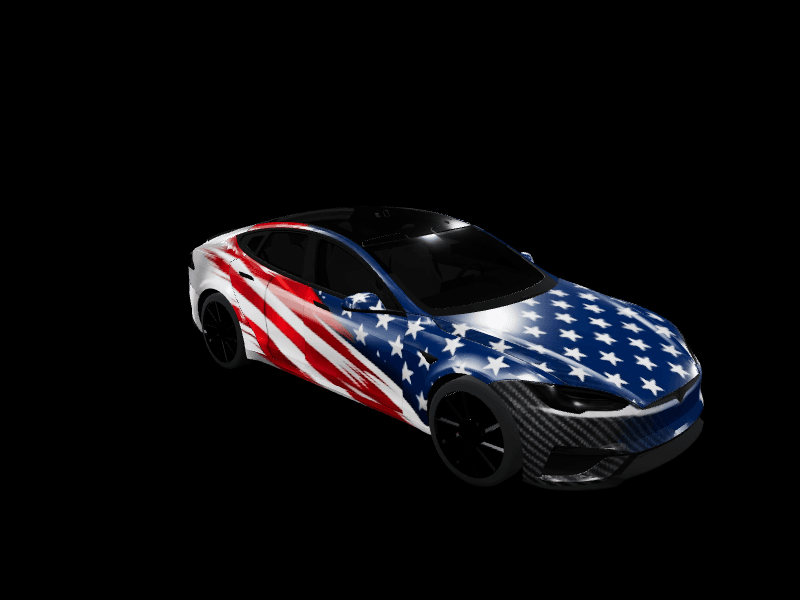
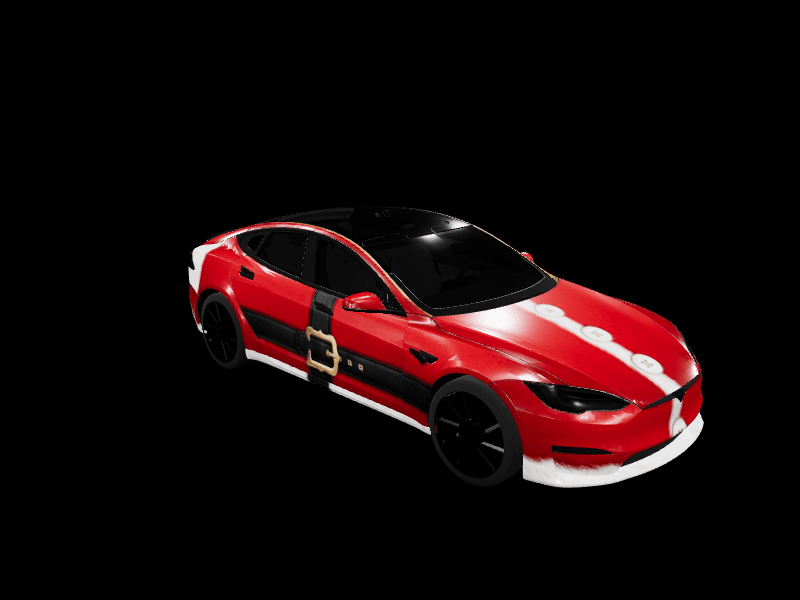
Tesla Model S42 designs
All Model S wraps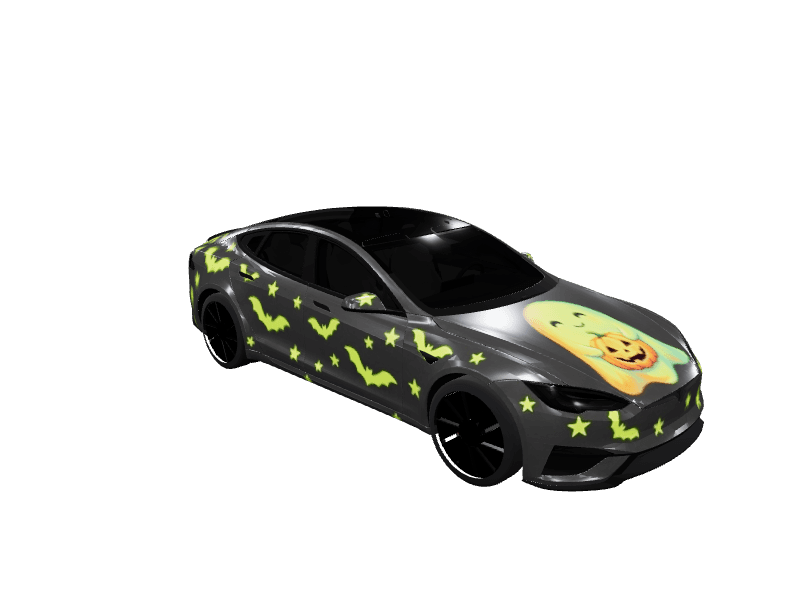
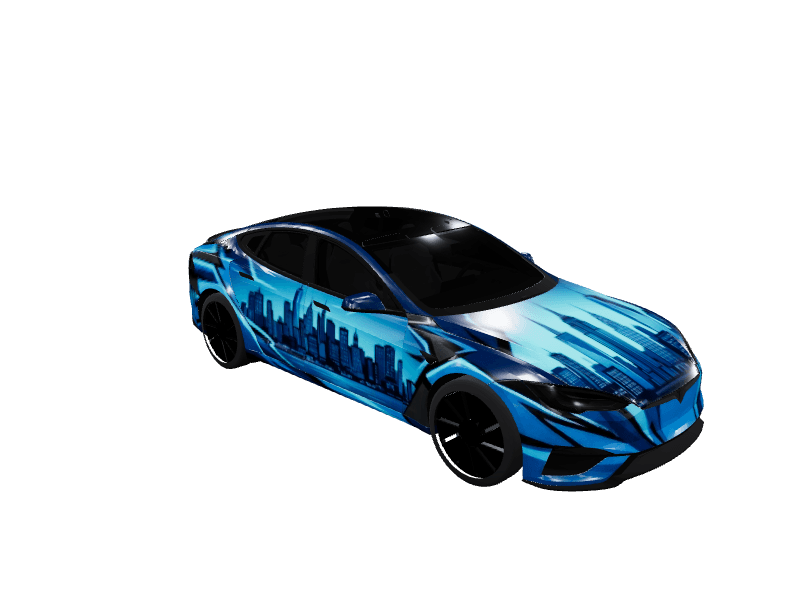
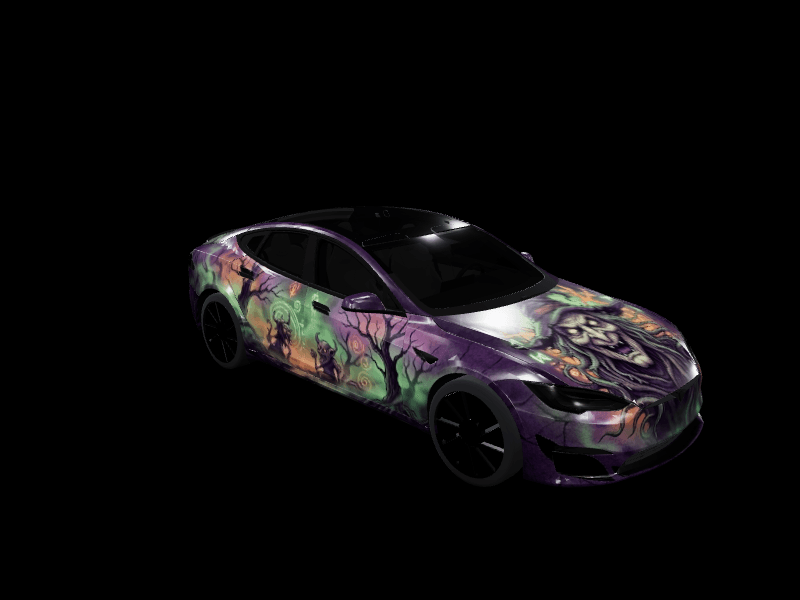

Tesla Model X21 designs
All Model X wraps

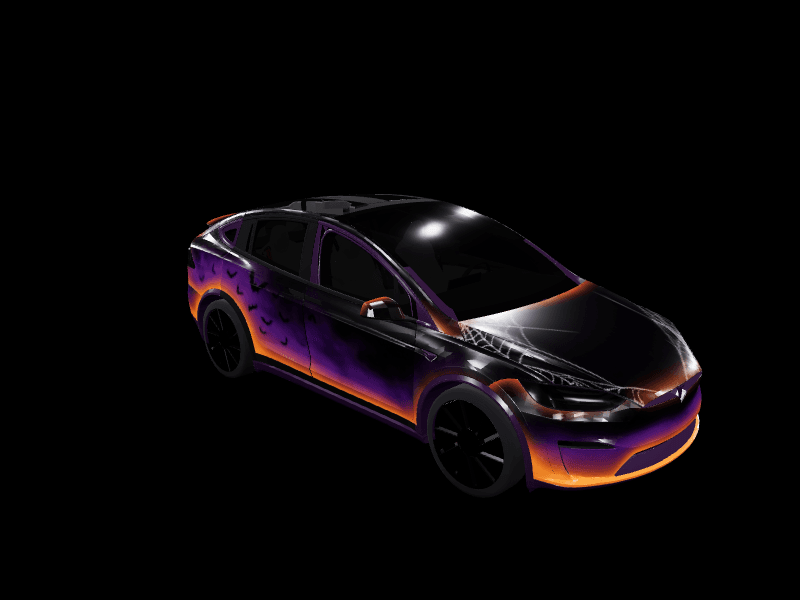
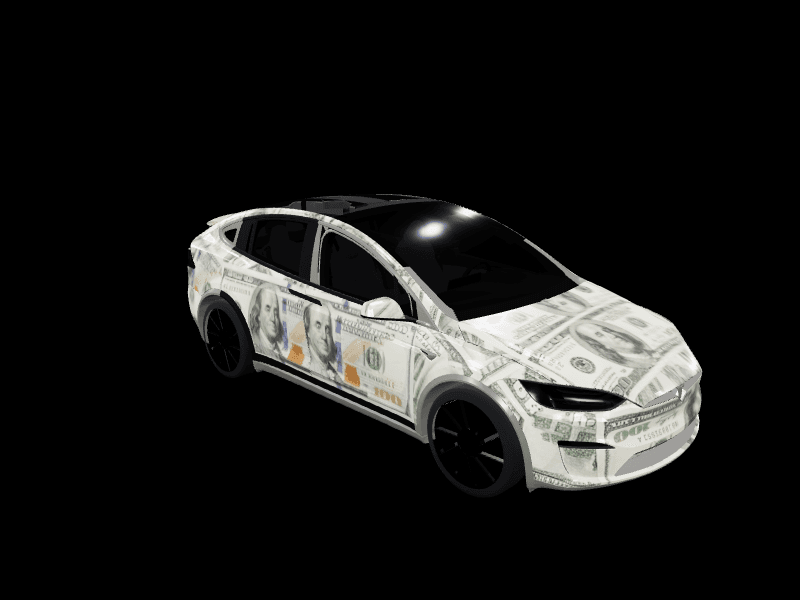
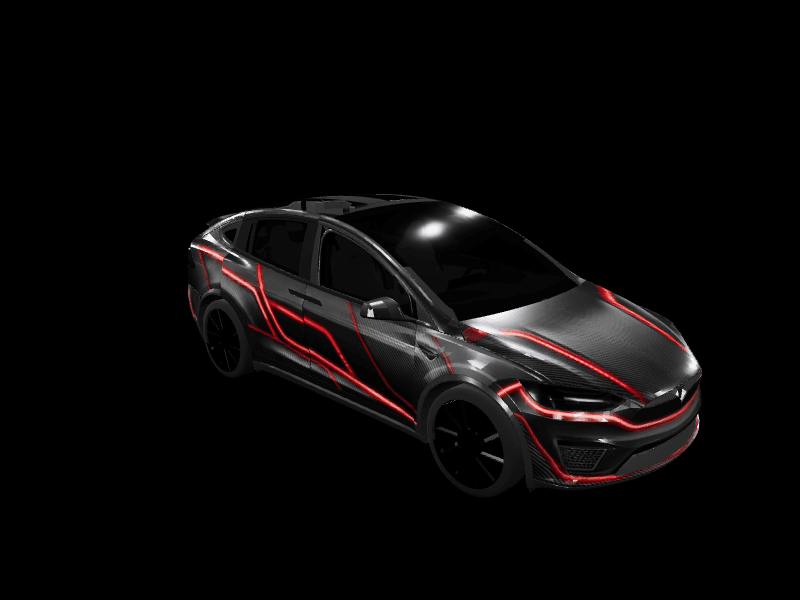
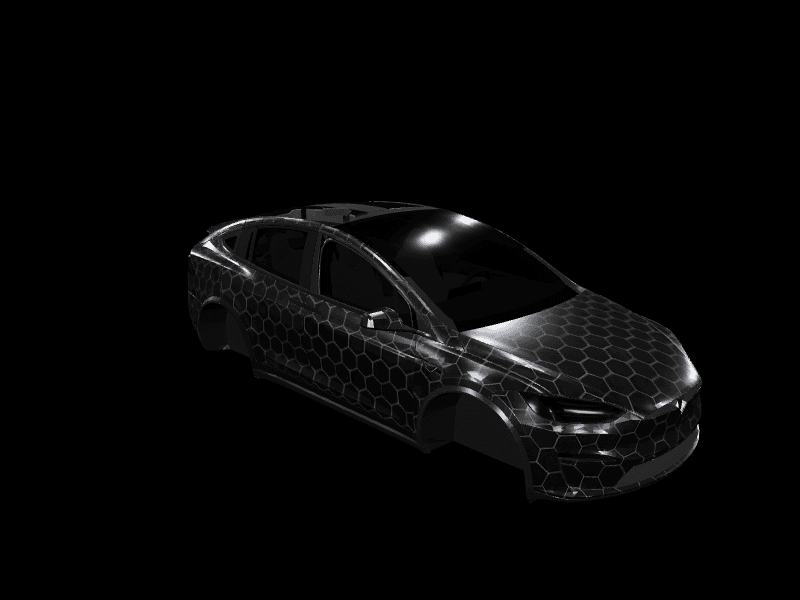
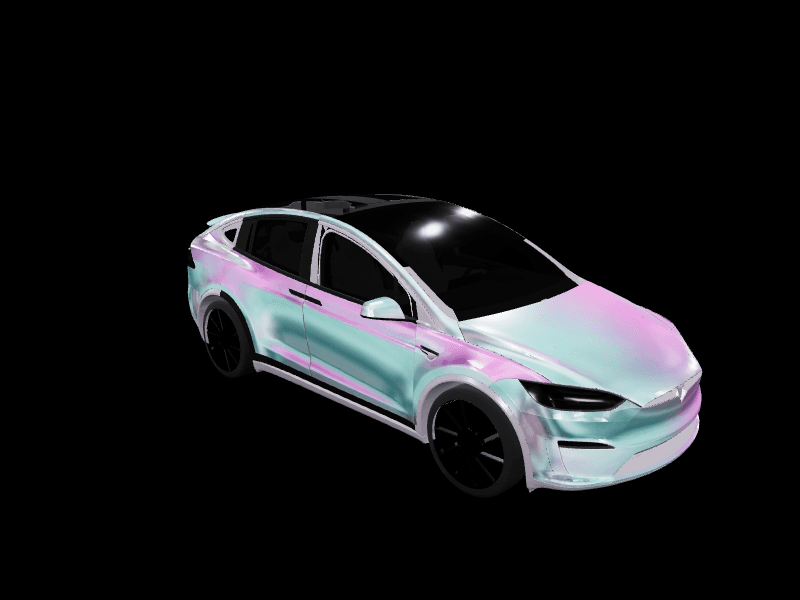
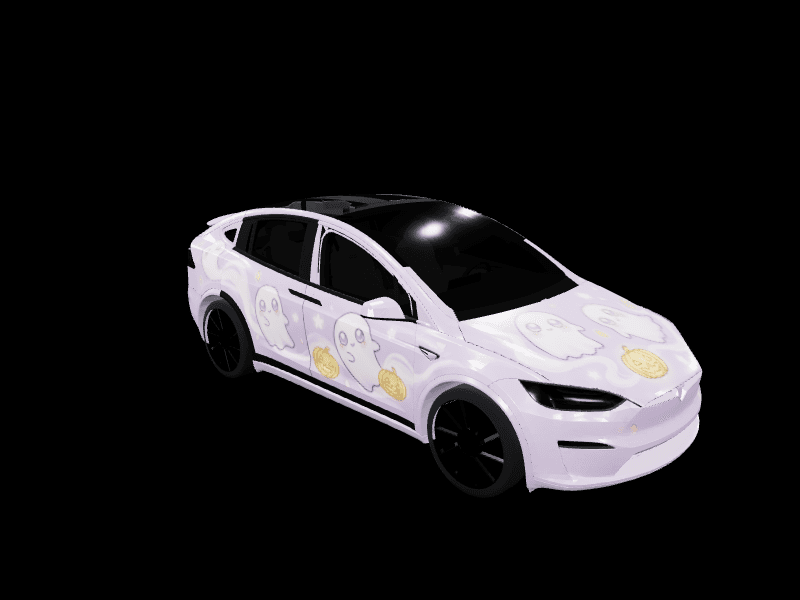
Paint Shop not working? Check these first
- Versions. No Wrap tab in the app means the app is below 4.59.1 or the car is below 2026.26. Check Controls > Software on the car.
- The file. PNG only, under 1MB, between 512x512 and 1024x1024. A JPEG renamed to .png is rejected. The wrap file checker spots all of these in a second.
- The filename. Letters, numbers, spaces, underscores, and dashes only, 30 characters at most.
- The USB drive. The folder must be named Wraps and sit at the root, and the drive must be exFAT, FAT32, ext3, or ext4. NTFS drives are ignored entirely.
- The limit. Ten wraps from the app and ten from USB. At the limit, delete one from the Wraps tab before uploading another.
- The wrong template. A design that looks stretched or misaligned was built for a different model. The Cybertruck uses a landscape 1024x768 template; everything else is square. Find the right one on the Tesla wrap templates page.
More Tesla Paint Shop guides
The app and USB routes in detail, which cars support wraps, and the menu names.
- Send a wrap to your Tesla from your phone
The app route: no USB drive, no computer.
- Export a Tesla wrap to USB
The drive format, the Wraps folder and the file rules.
- Which Teslas support Paint Shop wraps
Models, years and the software you need.
- Tesla glossary: Paint Shop, Toybox and Creations
The menu names explained in plain words.
Make your own Paint Shop wrap
Pick your Tesla, design on its official template or describe a look and let the AI paint it, watch it on a rotating 3D model of your car, and export a file the app accepts on the first try. Free, in the browser.
Prefer to ask? Connected to Claude or ChatGPT, FrunkLab designs the wrap from a chat and saves it to your designs. Setup is on the AI assistants page.
Frequently asked questions
What is Tesla Paint Shop?
Paint Shop is the feature inside your Tesla's Toybox that changes how the car looks on its own screens. Open Toybox > Paint Shop and you can recolor the vehicle visualization, tint the windows, restyle the license plate, and on the Wraps tab apply a custom PNG wrap. It shipped in Tesla's 2025 Holiday Update for Model 3, Model Y, and Cybertruck (the Cybertruck had custom wraps a year earlier), and reached Model S and Model X in the 2026 Spring Update. Nothing about your physical paint changes.
How do I upload a custom wrap from the Tesla app?
Open the Tesla app, pick your car, then go to Creations > Wrap > Upload and choose the PNG from your phone. The app renders it on a 3D model of your car, then gives you two buttons: Upload & Apply Wrap sends it to the car and applies it immediately, Upload Only stores it for later. You need Tesla app 4.59.1 or newer and car software 2026.26 or newer. No USB drive and no computer.
Why isn't my wrap showing up in Paint Shop?
Five things cause almost every failure. The car is below software 2026.26 or the app is below 4.59.1, so there is no Wrap tab. The file is not a PNG, is over 1MB, or is not between 512x512 and 1024x1024. The filename uses characters other than letters, numbers, spaces, underscores, and dashes, or runs past 30 characters. On USB, the folder is not named Wraps at the root of the drive, or the drive is NTFS, which Tesla does not read. Or you already have 10 wraps stored on that source and need to delete one first.
Do the Model S and Model X support custom wraps?
Yes. Tesla's 2026 Spring Update brought the full Paint Shop, custom wraps included, to Model S and Model X, and the Summer Update added app uploads for them too. On FrunkLab both render on their own rotating 3D models, so a Model S or Model X wrap is designed, previewed, and exported exactly like a Model 3 one.
What size should a Tesla wrap PNG be?
Tesla accepts PNGs from 512x512 to 1024x1024 and under 1MB, and the best results come from using your model's exact template size. That is 1024x1024 for Model 3, Model Y, Model S, and Model X, and 1024x768 for the Cybertruck, which uses a landscape template. FrunkLab exports at the right size for whichever vehicle you picked, so there is nothing to resize or compress.
How many custom wraps can a Tesla store?
Ten from the mobile app plus ten from a USB drive, so twenty in total if you use both routes. When you hit the limit the car rejects the next upload until you delete one, which you do from Toybox > Paint Shop on the Wraps tab. Deleting a wrap from the car does not touch the copy saved in your FrunkLab designs.