How to send a custom wrap to your Tesla from your phone (no USB, no computer)
Design a Paint Shop wrap on your phone, download the PNG, and upload it through the Tesla app under Creations > Wrap > Upload. The whole loop in three steps, the requirements that trip people up, and when you still need a USB drive.

Quick answer: Design or download a wrap PNG on your phone, then open the Tesla app, go to Creations > Wrap > Upload, pick the file and tap Upload & Apply Wrap. You need car software 2026.26 or newer and Tesla app 4.59.1 or newer. No USB drive or computer needed.
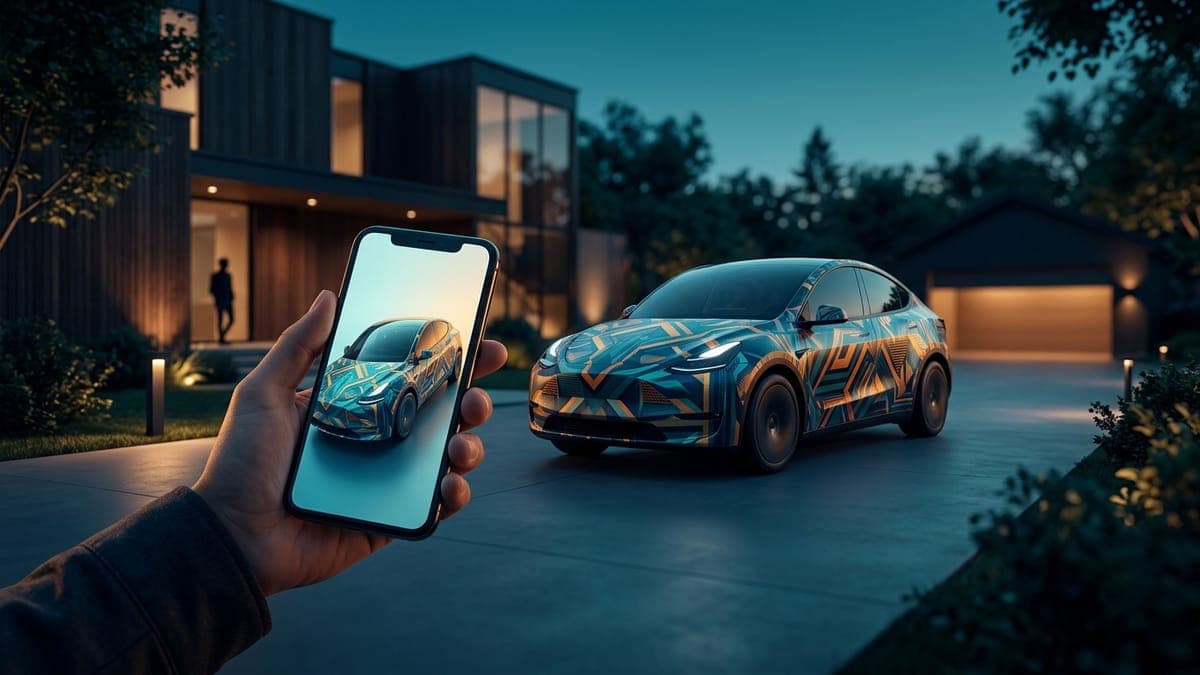
A custom Tesla wrap now takes three taps from a phone. You design it, you download a PNG, and you upload that PNG in the Tesla app under Creations > Wrap > Upload. The app shows it on a 3D model of your car, sends it over the air, and the car wears it under Toybox > Paint Shop > Wraps. No USB drive, no laptop, no walking a file out to the driveway.
This guide is the whole loop, phone to car, with nothing else in it. If you want the Tesla-app half in more detail, here's how to upload a wrap from the Tesla app with a screenshot for every tap. If you would rather ask an assistant to do the designing, the AI assistants page covers that path.
What you need
- A Tesla running software 2026.26 or newer (Controls > Software shows the version).
- The Tesla app at version 4.59.1 or newer, on the phone that is paired to the car.
- A wrap file that meets Tesla's rules: PNG only, between 512x512 and 1024x1024 pixels (1024x768 for the Cybertruck), under 1 MB, with a filename of letters, numbers, spaces, underscores, and dashes, up to 30 characters.
Every wrap you download from FrunkLab already meets the file rules, so the third item is a check, not a task.
Step 1: Design the wrap on your phone
Open the studio on your phone and pick your Tesla. On a phone the studio opens prompt-first: describe the wrap you want, pick a style if you like, and tap Generate. In about half a minute the design appears on a rotating 3D model of your car. Try again if it is not right, or fine-tune it in the editor if it is close.
You do not have to generate anything. The gallery has hundreds of community wraps sorted by model, and the per-model collections on the wraps pages are the fastest way to find one for your car. Tap Download on any of them and skip to Step 3. If you want to make a gallery wrap your own first, Customize opens it in the editor.
Free accounts get 2 AI generations a month; the pricing page has the paid allowances. Downloading a finished design, yours or anyone's, is always free.
Step 2: Download the PNG
On the design page, tap Download Wrap. Your phone saves a PNG named after the design. On Android it goes to Downloads, which the Tesla app's picker can open. On iPhone, Safari usually saves it to Files > Downloads, but the Tesla app picks from your Photos library, so move it across first: open the file in the Files app, tap Share, then Save Image. A copy lands in Photos, ready for Step 3.
The file is already the right size for your car, under 1 MB, and named safely. If you renamed it, keep the name to letters, numbers, spaces, underscores, and dashes.
Step 3: Upload it in the Tesla app and pick it on the car
In the Tesla app, go to Creations > Wrap > Upload, pick the PNG, check it on the 3D model and tap Upload & Apply Wrap. It then appears on the touchscreen under Toybox > Paint Shop > Wraps, where the car keeps up to 10 app uploads plus 10 from USB for you to swap between whenever the mood changes. The step-by-step upload tutorial has a screenshot for every tap.
Which Teslas this works on
All of them, on current software. Tesla Paint Shop arrived in the 2025 Holiday Update for the Model 3, Model Y, and Cybertruck, reached the Model S and Model X in the 2026 Spring Update, and the app upload came with the Summer Update for every model at once. Each car has its own template size, and the studio picks the right one when you choose your car: a 1024x1024 square for the Model 3, Model Y, Model S, and Model X, and a 1024x768 landscape file for the Cybertruck. Download a wrap made for a different model and Paint Shop will still take the file, but the panels will not line up, so filter the gallery by your car before you download.
One caveat for very new deliveries. A car that has not yet taken its first software update may still be below 2026.26 in the first days, so check Controls > Software before assuming the Wrap tab is missing for another reason.
How long does it take?
From tapping Generate to seeing the wrap on the car, a few minutes. Generation is around half a minute, download is instant, and the upload usually lands on the car within a minute of tapping Upload & Apply. The slowest step is a sleeping car waking up.
When you still need a USB drive
Two cases. Your car is below software 2026.26, so the Wrap tab is not there yet. Or you want to load a wrap without the phone that is paired to the car. Both work the old way: put the PNG in a folder named Wraps at the root of an exFAT or FAT32 drive (NTFS will not read), plug it into the car, and pick it under Toybox > Paint Shop > Wraps. The USB export tutorial walks it through.
Lock chimes are the other exception. A custom LockChime.wav still loads by USB only, whatever your software version. The lock chime guide covers that one.
If the wrap does not show up
Almost every failure is one of five things: software older than 2026.26 or an app older than 4.59.1, a file that is not a PNG or is over 1 MB, an image outside the 512 to 1024 pixel range, a filename with a bad character or more than 30 characters, or 10 wraps already stored on that source. And if the file is missing from the app's picker on an iPhone, it's probably still in Files > Downloads: save it to Photos as in Step 2. The Paint Shop troubleshooting guide goes through each with the fix. Files from FrunkLab clear the middle three by construction, so start with the version check and the wrap count.
Frequently asked questions
Do I need a computer to put a custom wrap on my Tesla? No. Since the 2026 Summer Update the entire loop runs on a phone: design in the studio, download the PNG, upload it under Creations > Wrap > Upload in the Tesla app, and apply it in Toybox > Paint Shop > Wraps. A computer and a USB drive are the fallback for older software.
How long does it take to upload a wrap from the Tesla app? Usually under a minute from tapping Upload & Apply Wrap to the car showing it, plus a few seconds if the car has to wake up. Designing the wrap takes longer than installing it.
Does uploading a wrap cost anything? No. Uploading is a free Tesla app feature and downloading a finished design from FrunkLab is free. AI generation has a free monthly allowance, and one-time packs add more.
Can I change it back? Yes, in seconds. Paint Shop keeps the stock look and every wrap you have loaded; pick any of them at any time. Nothing touches your physical paint, and deleting a wrap from the list removes it from the car.
Why isn't my wrap showing up in Paint Shop? Check the car's software version (2026.26 or newer), the app version (4.59.1 or newer), and whether you already have 10 wraps stored from that source. If the file came from somewhere other than FrunkLab, also check that it is a PNG under 1 MB with a plain filename. The troubleshooting guide has the full list.
Pick up your phone, open the studio, and your car can be wearing something new before you finish your coffee.
Get a wrap onto your Tesla
Grab a free community design, then load it in Paint Shop from the Tesla app or a USB drive.