Halloween Tesla lock sounds: spooky lock chimes to download or make with AI
Give your Tesla a Halloween lock sound. Zombie moans, a monster roar, a creepy whisper and more, all free Tesla-ready WAV files, plus prompts for making your own spooky chime with AI and the two-minute USB install.
 By Sienna Park, Design editor3 min read
The best Halloween lock sound is short, a little ridiculous and loud enough to make the neighbors look twice. Pick one from the free library below, save it to a USB drive as LockChime.wav, and turn it on in Controls > Locks. Every sound here is already a Tesla-ready file, so there is nothing to convert.
Free spooky lock sounds
All of these are in the FrunkLab lock sound library, under five seconds and under 1 MB, and they download already named LockChime.wav.
- Zombie Moan. A slow, gravelly groan. The classic.
- Zombie Brains Moan. Same zombie, with opinions about dinner.
- Monster Death Roar. One second of pure drama. Great for a parking lot.
- Scary Whoosh. A long, rising whoosh that sounds like something just swept past the car.
- Something Alive In Here. A creepy line that lands best when you walk away fast.
- Startled Ahhh. For the jump scare crowd.
- Challenge Snare Roll. A quick drum roll. Pair it with a dramatic exit.
- Screaming Goat. Not spooky, just chaos. Every street needs one.
Play them in the browser before you download. A sound that is funny once is not always funny on the 40th lock.
Make your own Halloween chime with AI
Want something nobody else on your street has? The AI lock chime generator turns a short description into a Tesla-ready WAV. A few prompts that work well:
- a deep, slow church bell that rings once and fades into wind
- a witch's cackle that echoes and fades out
- a creaky old door opening, then a heavy thud
- a calm, spooky voice saying "the doors are sealed"
- a short theremin melody, like an old monster movie
Melody and voice chimes are free every day, so you can try a few. Put the words in quotes when you want a voice to say them.
How to install a lock sound
- Format a USB drive as exFAT or FAT32.
- Copy the file to the top of the drive, named exactly
LockChime.wav. - Plug it into the car, open Controls > Locks, and choose the custom lock sound.
- Lock the car and enjoy the reaction.
The full walkthrough, with fixes for when it does not play, is in our lock chime guide.
Match the sound to the look
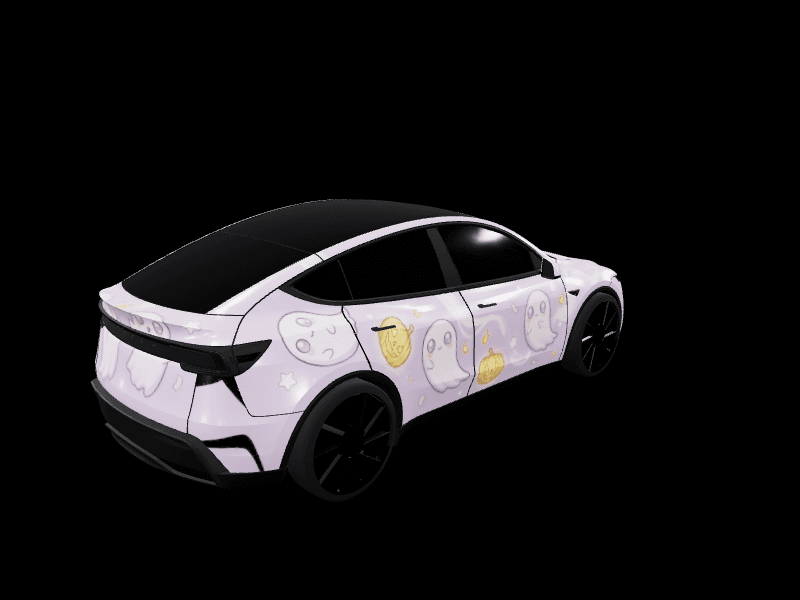
A zombie lock sound on a plain white car is fun. On a car wearing a purple and orange spiderweb wrap it is a whole bit. Our Halloween wrap ideas round up the best spooky designs in the gallery, and you can put any of them on your car's screen with Paint Shop in a couple of minutes.
Frequently asked questions
How do I get a Halloween lock sound on my Tesla? Download a spooky sound as LockChime.wav, put it at the top of a USB drive, plug it in and pick it in Controls > Locks.
Are these Halloween lock sounds free? Yes. Every sound in the FrunkLab library is a free download.
How long can a Tesla lock sound be? Five seconds or less, and the file has to be under 1 MB.
Can I make my own spooky lock chime? Yes. Describe it to the AI lock chime generator, for example a witch's cackle or a single church bell, and download the result.
Ready for the full costume? Design a Halloween wrap in the studio to go with your new lock sound.
Put a custom wrap on your Model Y
Community designs, free to grab — or make your own in the browser.