New Tesla? Set up Paint Shop, a custom wrap and a lock sound in your first week
Just took delivery? Paint Shop and Boombox are the two places that make the car feel like yours. Where to find them, how to load your first wrap from your phone, how to change the lock sound, and how to give a custom wrap as a gift.
 By Dex Moreno, Guides editor6 min read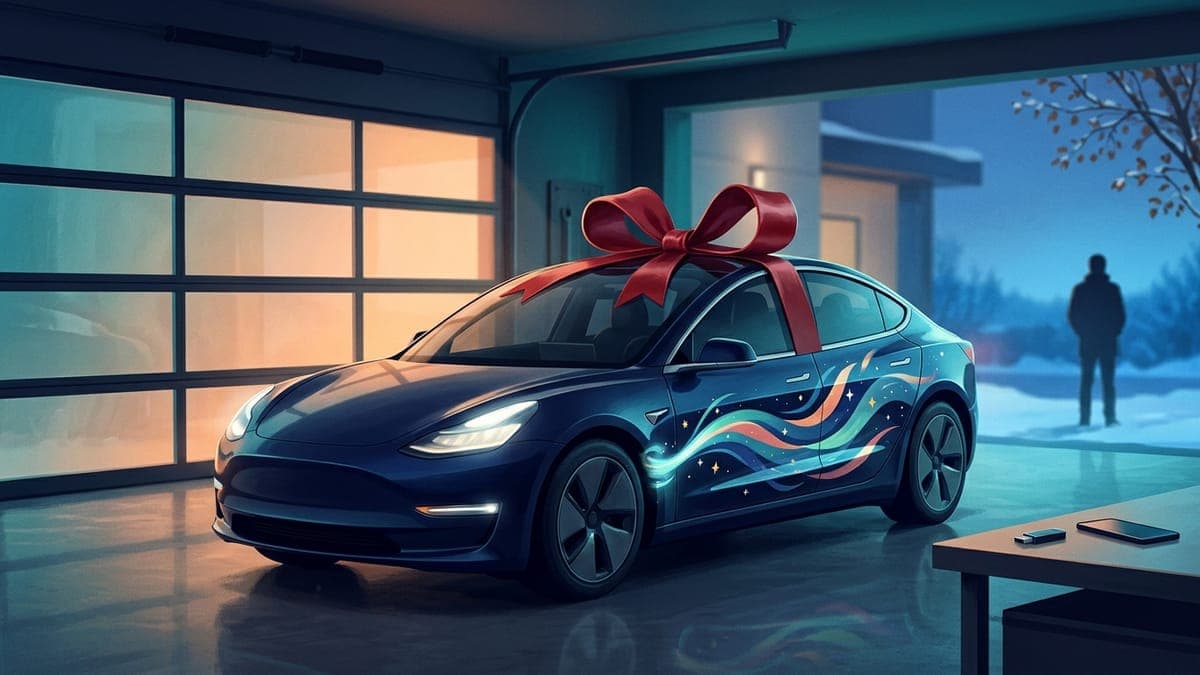
Quick answer: On a new Tesla, personalization lives in Toybox. Put your own wrap on the car's on-screen model from the Tesla app (Creations > Wrap > Upload), then pick it in Toybox > Paint Shop > Wraps. Change the lock honk by copying a
LockChime.wavfile to a USB drive and choosing USB under Toybox > Boombox > Lock Sound. Both take about 10 minutes and cost nothing.
A lot of new Teslas reach their owners in the last weeks of the year. The first days go to the important things: charging at home, the key card, seat profiles. Once those are done, two small settings do the most to make the car feel like yours, and most new owners don't find them for months.
This guide covers both, in the order you'll want them, plus one thing to do if the new car isn't yours but you want to give its owner something.
Step 1: Find Toybox
Tap the Toybox icon on the car's touchscreen. It's the app launcher's home for the fun side of the car: Paint Shop, Boombox, Light Show, Santa Mode and more. If you don't see it in the dock, open the app launcher and drag it down.
Our Toybox guide walks through every feature in it. For now you need two: Paint Shop and Boombox.
Step 2: Check that your car has Paint Shop
Open Toybox > Paint Shop. If there's a Wraps tab, your car can wear a custom wrap. Every Tesla currently sold has it: the Cybertruck has had custom wraps since the 2024 Holiday Update, the Model 3 and Model Y got Paint Shop in the 2025 Holiday Update, and the Model S and Model X in the 2026 Spring Update. A brand-new car will be on recent software, but check Controls > Software if the tab is missing.
A wrap in Paint Shop is digital. It changes how your car looks on its own screen, not the paint. Think of it as a wallpaper for the 3D car model.
For uploads from your phone, the car needs software 2026.26 or newer and the Tesla app needs version 4.59.1 or newer. The which Tesla supports what guide has the full table by model.
Step 3: Make or pick your first wrap
You have three easy options:
- Pick a free one. The gallery has free wraps for every model, already sized to Tesla's templates. Open one and tap Download Wrap.
- Describe one. Type an idea into the AI Tesla wrap generator, like "midnight blue with silver snowflakes on every panel", and preview it on a 3D model of your car. Every free account gets 2 AI wraps a month.
- Design one by hand. Open the studio, pick your car, and add colors, gradients, shapes, text and your own photos.
Whatever you choose, the file must be a PNG under 1 MB on your model's template: 1024x1024 for Model 3, Model Y, Model S and Model X, 1024x768 for the Cybertruck. Files from the studio and the gallery already meet that. A file you made elsewhere can be checked with the Tesla wrap checker.
Step 4: Send the wrap to the car from your phone
- Save the PNG to your phone's photos or files.
- In the Tesla app, open Creations > Wrap > Upload and pick the file.
- On the car, open Toybox > Paint Shop > Wraps and tap your design.
That's it. Paint Shop holds up to 10 wraps from the app plus 10 from a USB drive, so you can keep a few and swap with the seasons. The Tesla app upload tutorial has screenshots of each screen.
What usually goes wrong: the app is out of date (update it from your app store), or the file is a JPEG renamed to .png. Export a real PNG and try again. The Paint Shop troubleshooting guide covers the rest.
Step 5: Change the lock sound
When you lock a Tesla, it honks. With a lock sound, it plays a short clip through the external speaker instead.
- Pick a sound from the lock sounds library or make an original one with the Tesla lock chime generator.
- Name the file
LockChime.wav. It must be a WAV under 5 seconds and under 1 MB. - Copy it to the top level of a USB drive formatted exFAT, FAT32, ext3 or ext4 (not NTFS). Not inside any folder.
- Plug the drive into a front data port. On many cars built since late 2021 the console ports only charge, so use the glovebox port.
- On the car, open Toybox > Boombox, turn on Lock Sound and choose USB.
Lock the car and walk away. If you hear the old honk, the file is in a folder or the drive is in a charge-only port. The lock chime guide goes deeper.
Step 6: Keep the setup when the software updates
New cars get updates often in their first months, including the Holiday Update that usually arrives in December. Your saved wraps and lock sound survive updates. If a wrap ever disappears from Paint Shop after an update, upload it again from the app. Our guide to when the Tesla Holiday Update comes out covers how to get updates early.
Giving a custom wrap as a gift
If someone you know just got a Tesla, a wrap made for their car is a personal gift that costs nothing but your time.
- Find out the exact model and year. The template matters: a Model Y Juniper and a 2023 Model Y use different files, and so do Model 3 Highland and the earlier Model 3.
- Design it in the studio on that car. Their favorite colors, their dog, their hometown skyline, an inside joke.
- Download the PNG and send it to them, or put it on a USB drive in a folder named
Wraps, with aLockChime.wavat the top level of the same drive if you made a sound too. - Wrap the drive. They plug it in and pick both in Toybox.
What usually goes wrong: the gift is designed for the wrong template, and the doors land in the wrong places. Ask, or check the model year on the car's registration before you design.
Frequently asked questions
Where is Paint Shop on a new Tesla? On the car's touchscreen, open Toybox > Paint Shop, then the Wraps tab. In the Tesla app, wraps are uploaded under Creations > Wrap > Upload.
Does a Paint Shop wrap change my car's real paint? No. It changes how the car looks on its own screen. It's a digital wrap, which is why it's free and you can swap it any time.
Can I put a wrap on my Tesla without a USB drive? Yes. With car software 2026.26 or newer and Tesla app 4.59.1 or newer, upload the PNG from the app under Creations > Wrap > Upload.
Why does my Tesla still honk after I added a lock sound?
Usually the file isn't named LockChime.wav, is inside a folder, is longer than 5 seconds, or the drive is in a charge-only port. Use the glovebox port on newer cars.
Start with one wrap in the studio. It takes about as long as setting your seat position, and you'll see it every time you get in.
Find your Tesla lock sound
Free lock chimes that download already named LockChime.wav, or describe your own and let the AI make it.