Tesla Light Show: how to start one, sync it with friends and add your own
Light Show makes a parked Tesla flash its lights and move its windows and mirrors in time to music. How to start it from the touchscreen or the Tesla app, schedule it up to 10 minutes ahead, sync several cars, and load a custom show from a USB drive using Tesla's own rules.
 By Dex Moreno, Guides editor7 min read
Quick answer: Park outside, open the App Launcher, tap Toybox > Light Show, pick a show and either play it right away or schedule it up to 10 minutes ahead. You can also start it from the Tesla app. For a custom show, put a
.fseqfile and a matching.wavor.mp3in aLightShowfolder on a USB drive, then tap Schedule Show and choose it.
Light Show runs the car's lights, windows, mirrors and other closures in time to a song while the car is parked. Tesla adds a new built-in show most Decembers, and since 2021 the car has also played shows that owners build themselves. This guide covers both.
How to start a Tesla Light Show
- Park outside with room around the car. Tesla's manual puts it as "Park outside, turn the volume up, roll down your windows." Windows, mirrors and other closures can move during a show.
- Open the App Launcher and tap Toybox > Light Show.
- Pick a show from the list.
- Play it now or schedule it. Tesla's 2024 Holiday Update notes say you can "play the show instantly or schedule it up to 10 minutes in advance, either on a single vehicle or synced with friends", per Not a Tesla App's copy of the 2024.44.25 notes.
- Get out and watch. Scheduling gives you time to close the door and step back.
From your phone: the same release notes add "Start the show from your mobile app (version 4.39.5+ required)".
Tesla's manual also says a light show isn't for use on or near public roads. A driveway, a garage forecourt or an empty lot is the place.
Where does the music play?
Inside the car. Tesla's light show guide on GitHub says "Music only plays from the cabin speakers during the show." That's why the manual tells you to roll the windows down and turn the volume up. Some how-to pages say the outside speaker joins in; Tesla's own page says it doesn't.
Which shows come with the car?
Tesla has added shows through its December updates. From each year's release notes:
| Holiday Update | What it added |
|---|---|
| 2021 | Light Show itself |
| 2022 | "Auld Lang Syne", and the option to schedule a show |
| 2023 | "The Arrival" by Irving Victoria |
| 2024 | "Cyber Symphony" by Lionel Yu and "Ready for Assault" by Evgeny Bardyuzha |
| 2025 | "Jingle Rush" |
Sources: Not a Tesla App's release notes for 2021, 2022, 2023 and 2025, and Drive Tesla's 2024 notes. We couldn't find one official list of every show on every car, so your own Light Show menu is the final word. Whether 2026 brings another is covered in our Tesla Holiday Update guide.
How to sync a light show with other Teslas
Schedule the same show for the same minute on each car. Tesla's release notes describe scheduling as working "either on a single vehicle or synced with friends". Give yourselves the full 10 minutes the first time.
For something bigger, Tesla supports custom shows written for a group: up to eight cars, designed together in xLights, with one exported show file per car, per Not a Tesla App.
How to add a custom light show from USB
Owners build shows in xLights, a free sequencing app, and share the files. Loading one takes a USB drive and five minutes. These rules are Tesla's, from its GitHub guide:
- Format the drive as exFAT, FAT32, MS-DOS FAT (Mac), ext3 or ext4. NTFS isn't supported.
- Make a folder named
LightShowat the top level of the drive. The name is case sensitive. - Copy in the show: one
.fseqfile and one.wavor.mp3with the same file name, for exampleshow1.fseqandshow1.wav. Tesla recommends WAV. - Keep the drive clean. It must not have a top-level
TeslaCamfolder or any map or firmware update files. - Plug it into a front USB or USB-C port, or the glovebox port, and wait a few seconds. On many cars built since late 2021 the console ports only charge, so use the glovebox port.
- Open Toybox > Light Show, tap Schedule Show and choose your show from the drop-down. The popup should read Custom Light Show.
Since software 2023.44.25, one drive can hold several shows. Give each pair its own matching name.
The limits worth knowing
- Length: a custom show can run up to 4 hours.
- Commands: Tesla removed the old cap on how many commands a show can hold. Moving parts still have their own per-show limits, for example 6 window commands and 20 mirror commands.
- Audio: use 44.1 kHz. Tesla warns that 48 kHz files won't sync properly.
- If you're building one: export from xLights as FSEQ "V2 Uncompressed". Tesla recommends a 20 ms frame interval.
Which Teslas can run a light show?
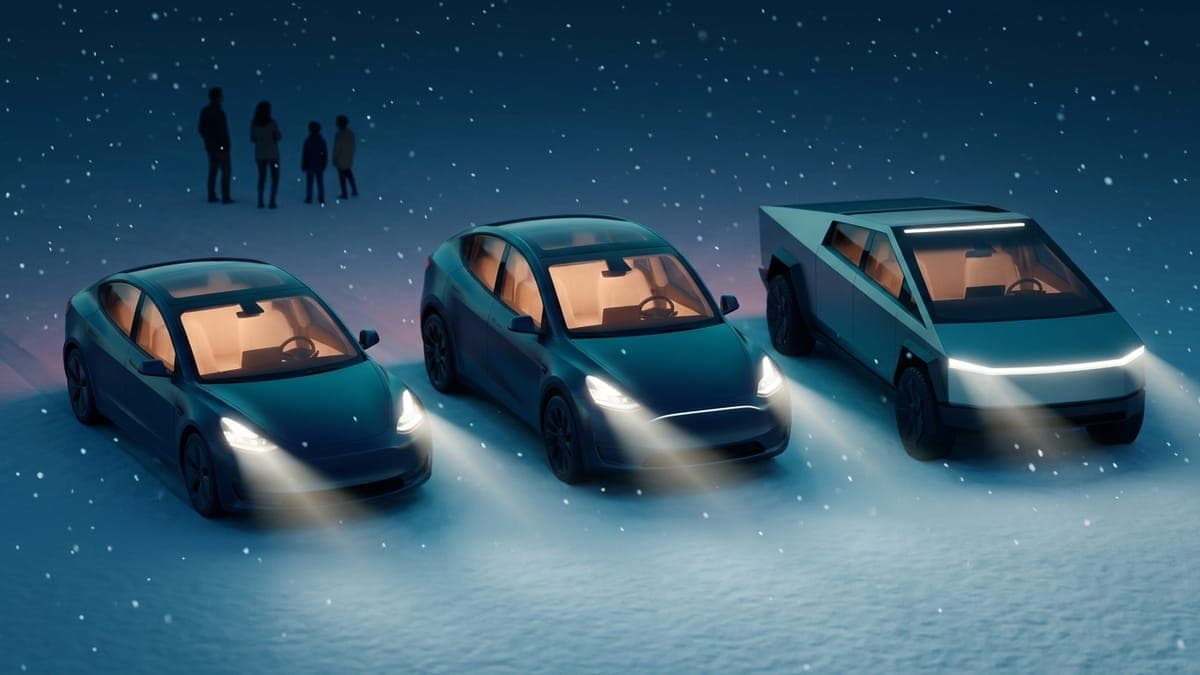
Tesla's guide lists Model S (2021 and newer), Model X (2021 and newer), Model 3, Model Y and Cybertruck, on software 2021.44.25 or newer. The 2024 Holiday Update added control of the interior lighting and the display color, and Tesla's guide now also covers the Cybertruck's light bars, per Not a Tesla App.
What usually goes wrong
- The popup says "Light Show", not "Custom Light Show". The car didn't accept the drive. Check the folder name letter by letter (
LightShow, capital L and capital S), reformat if the drive is NTFS, and remove anyTeslaCamfolder. - Lights and music drift apart. The audio is probably 48 kHz. Convert it to 44.1 kHz and copy it again.
- Your show isn't in the list. The
.fseqand the audio file names don't match. They have to be identical apart from the extension. - Nobody outside can hear it. Music plays through the cabin speakers only. Windows down, volume up.
- Your dashcam stopped saving. A Light Show drive can't carry a
TeslaCamfolder, so don't reuse the dashcam drive. Use a separate small drive for shows, and plug the dashcam drive back in after.
One small drive per job
Light shows aren't the only thing a Tesla reads from USB. A wrap goes in a Wraps folder, a custom lock sound is a LockChime.wav at the top level, and Boombox sounds go in a Boombox folder. Each has its own rules, so a cheap drive for each is the setup that never fights itself. Our Tesla Toybox guide lists every folder in one place, and the USB wrap tutorial covers formatting.
Match the show with a wrap and a lock sound
A light show lasts a few minutes. The wrap on your screen and the sound your car makes when it locks are there every day.
- A wrap: design one in the studio or pick a free one from the Model Y Christmas wraps. Send it from the Tesla app under Creations > Wrap > Upload (app upload steps).
- A lock sound: browse the lock sounds library, or follow how to change your Tesla lock chime.
- Santa Mode: one more Toybox extra for December. See how to turn on Tesla Santa Mode.
Frequently asked questions
How do I start a light show on my Tesla? Park outside, open the App Launcher, tap Toybox, then Light Show. Pick a show and play it now or schedule it up to 10 minutes ahead. The Tesla app (4.39.5 or newer) can start it too.
Can I add my own light show to a Tesla?
Yes. Put a .fseq file and a .wav or .mp3 with the same name in a LightShow folder on a USB drive, plug it in, then tap Schedule Show in Toybox > Light Show and choose it.
Why does my Tesla say "Light Show" and not "Custom Light Show"?
The car didn't read the drive. The usual causes are a misspelled folder (it must be LightShow), an NTFS drive, or a TeslaCam folder on the same drive.
Does the light show music play outside the car? No. Tesla's guide says music plays from the cabin speakers only, so roll the windows down.
How long can a custom Tesla light show be? Up to 4 hours, per Tesla's guide.
Which Teslas support Light Show? Model S and Model X from 2021, every Model 3 and Model Y, and the Cybertruck, on software 2021.44.25 or newer.
Open the studio and give the car a wrap to wear after the show ends.
Get a wrap onto your Tesla
Grab a free community design, then load it in Paint Shop from the Tesla app or a USB drive.