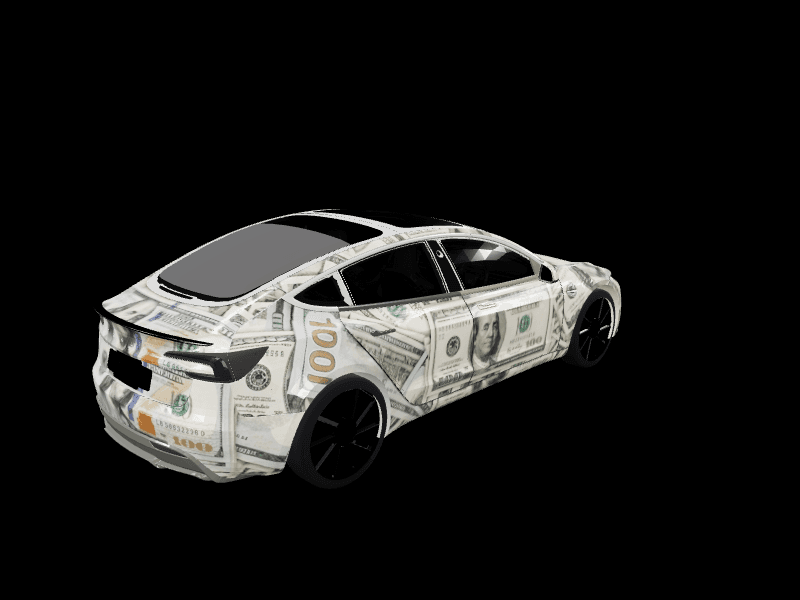
Downloading a Tesla wrap: which file your car needs and where to find one
What a Tesla wrap download actually is, which Paint Shop file each model needs, and where to find free community designs. No account, no watermark, no catch.

A custom Tesla wrap is a PNG your car displays on its own screens, and there is no reason to pay for one. Hundreds of community designs are free to download here, already sized for the car they were made for.
This covers where to find them, which file your specific Tesla needs, and how to get one onto the car. If you would rather make your own, the studio is free too.
What you are downloading
A wrap file is not a texture pack or an app. It is a single PNG laid out to match your model's body panels, which Tesla Paint Shop maps onto the 3D vehicle the car draws on the touchscreen and in the Tesla app.
That means two things. Downloads are small and instant, and they are model-specific: a Model Y file on a Cybertruck produces a mess, because the two templates are different shapes.
Nothing about the physical car changes. If you are weighing this against real vinyl, digital wraps vs physical wraps has the honest comparison and the costs.
It is worth being clear about where the wrap shows up, because people are often surprised by how visible it is. Once applied, the design appears on the driving visualisation, the lock screen, the charging screen, and on your vehicle in the Tesla app. Everyone who gets in your car sees it. Nobody walking past does.
Where to find them
All free Tesla wraps are community-made and sorted by model, and each collection below is sized for that vehicle.
- Tesla Model 3 wraps covers the original body and the 2024+ Highland refresh, including the Performance trim.
- Tesla Model Y wraps covers the pre-2025 Model Y, the Model Y L, and every Juniper trim.
- Cybertruck wraps is the one to browse if you want bold graphics. Flat stainless panels take hard-edged art better than any curved car.
Each collection also splits by style, so if you know you want neon, matte, camo, racing or cyberpunk, you can jump straight to it rather than scrolling. The full gallery mixes every model together and is sortable by what other owners actually download.
If you are browsing without a fixed idea, sorting by downloads is the shortcut. The designs that get used repeatedly tend to share the same qualities: strong shapes that survive being wrapped around a curved panel, a limited palette, and nothing important near a seam. Fussy detail looks wonderful on a flat template and disappears on the car.
Model S and Model X designs live in the gallery too. Both render on their own 3D models now, so previews are accurate before you download. That is a recent change: until August 2026 those two previewed flat, which made judging a curve-dependent design on them a guessing game.
Which file does your Tesla need
| Model | Template size |
|---|---|
| Model 3 (all generations) | 1024x1024 |
| Model Y (all generations) | 1024x1024 |
| Model S | 1024x1024 |
| Model X | 1024x1024 |
| Cybertruck | 1024x768 (landscape) |
Every file must be a PNG under 1 MB, with a filename of 30 characters or fewer using only letters, numbers, spaces, underscores and dashes. Downloads from here already meet all of that. Files from elsewhere may not, and a file that misses any single rule is silently never offered on the car's Wraps tab.
How to load one, in about two minutes
From your phone. Download the PNG, open the Tesla app, and go to Creations > Wrap > Upload. Pick the file, check the 3D preview the app renders, then choose Upload & Apply Wrap. This needs car software 2026.26 or newer and app 4.59.1 or newer. Full detail in our tutorial on how to upload a wrap from the Tesla app.
By USB. Format a drive as exFAT or FAT32, create a folder named Wraps at the root, copy the PNGs in, and plug it into a front data port (the glovebox port on many cars built since late 2021, where the console ports only charge). Then open Toybox > Paint Shop > Wraps on the touchscreen. The USB walkthrough has the details. NTFS drives are ignored entirely, which is the most common reason a USB load appears to do nothing.
Either way, the car stores up to 10 wraps from the app and 10 from USB, and switching between them is one tap. The two pools count separately, so a full app list does not stop you loading more by drive.
If a download does not appear on the Wraps tab at all, it is nearly always the file or the drive rather than the car. Paint Shop not working walks through every cause in the order worth checking.
Downloading is a good way to start, not the ceiling
Free downloads solve the first problem, which is having something to put on the car tonight. They do not solve the second one, which is wanting something nobody else has.
Any design in the gallery can be opened in the editor and changed: swap the colours, move the graphic, put your own text on the doors. That is usually a better starting point than a blank template, because the hard part of a wrap is composition and someone has already done that part.
If you would rather start from a description, the AI generator turns a sentence into a wrap sized for your exact model. The AI Tesla wrap generator page covers what it is good at and where it still needs help, and our tutorial on AI wrap prompts has the phrasing that gets usable results.
A practical middle path: download something close to what you want, open it in the editor, and change the two things that are not right. Recolouring an existing composition takes a minute and produces a wrap nobody else has, without needing to solve layout from scratch.
A few things worth knowing before you download a pile of them
Ten is the practical limit per source. It is tempting to grab twenty designs in one sitting. The car holds ten from the app and ten from USB, so past that you are curating rather than collecting.
Match the generation, not just the model. A Model 3 and a Model 3 Highland use the same template size, but panel shapes differ enough that a design made for one can sit slightly wrong on the other. The collections above are split by generation for this reason.
Check it in 3D before you commit a slot. Every gallery page renders the design on the actual vehicle. Thirty seconds of rotating the car tells you more than the flat thumbnail does, particularly for anything with a horizon line or a gradient.
Seasonal swaps are the real use case. Because there is no cost and no installer, most people end up with a couple of looks they rotate rather than one permanent choice. That is the part physical vinyl cannot do at any price.
Frequently asked questions
Are these wraps really free?
Yes. Downloading any design in the gallery is free with no account, and there is no watermark on the file. You only pay if you want extra AI generations, as a one-time pack; see pricing.
Do I need an account to download a wrap?
No. Browsing and downloading are open. An account only matters if you want to save your own designs, publish to the gallery, or use the AI generator.
Can I use a downloaded wrap on a different model than it was made for?
Not directly. Templates differ by vehicle, so a Model 3 file on a Model Y puts art in the wrong places, and a square file on a Cybertruck is worse. Open the design in the editor with your own model selected instead, which re-fits it to the correct template.
Will a free wrap look worse than a paid one?
No. The file format is identical and the car renders every wrap the same way. What varies is the design, and the most-downloaded wraps in the gallery were made by owners, not studios.
Can I use these on a leased Tesla?
Yes. A digital wrap changes nothing physical, so there is nothing to return to standard at lease end. Can you wrap a leased Tesla covers the vinyl side, where the answer is more complicated.
Pick a design, or open the studio and make one nobody else has.
Put a custom wrap on your Model 3
Community designs, free to download, or make your own in the browser.