Tesla Model X wrap template: the one file and how to use it
Tesla publishes one Model X wrap template, a 1024x1024 PNG for the 2021 and later car. Where to get it, how the Falcon Wing doors and the long glass roof sit on the flat layout, and a step-by-step way to go from a blank template to a wrap on your screen.
 By Dex Moreno, Guides editor6 min read
Quick answer: Tesla publishes one Model X wrap template, Model X (2021+), a 1024 by 1024 PNG. Get it from Tesla's official wrap templates or our Tesla wrap templates page, or pick Model X in the studio and it loads automatically.
A Tesla Model X wrap template is the flat 1024 by 1024 image that Tesla Paint Shop uses to paint your car's 3D model. Tesla unfolds the body into one square, and whatever you paint on each part of that square ends up on the matching panel of the car on your screen.
The Model X is the easy one to choose: there's a single template. It's also the one that surprises people most when they first open it, because so much of the top of the car is glass and each Falcon Wing door is split into two pieces. This guide covers where to get the file, how to read it and the quickest route from a blank template to a wrap.
Download the blank Model X template
Tesla publishes the file as "Model X (2021+)" in its public custom wraps repository. Our Tesla wrap templates page shows a preview of it next to every other model, with a link to Tesla's file and a button that opens it in the studio. Download it if you design in Photoshop, Procreate or Canva, or pick Model X in the studio and the template is already there, outline and no-paint areas included.
Tesla's template is for the 2021 and later Model X. If you have an earlier car, our guide to which Tesla supports what covers what to check first.
How to read the Model X template
The template looks like the car was peeled and laid flat, seen from above, with the front at the top:
- Top: the front bumper, then a wide but short hood.
- Middle: the windshield, the glass over the cabin and the rear window, left empty as one long shape.
- Thin strips: a narrow painted strip runs down each side of that glass, from the windshield to the liftgate.
- Sides: a front fender, a front door, a Falcon Wing door and a rear quarter panel on each side.
- Bottom: a frame around the rear window and a band below it on the liftgate, then the rear bumper.
- Small pieces: the mirror caps sit beside the hood.
The part that trips people up is the Falcon Wing door. It takes two shapes on the template: the tall panel on the side of the car, and the back half of the thin strip beside the roof glass. They sit apart on the flat file but they're the same door, so paint both or the top edge of the door won't match its side.
Because the sides unfold outward, a figure you want upright on the driver's side should face toward the center of the square, and the same on the passenger side. Our Model X wrap ideas guide shows how designs make the most of those big side panels.
Step 1: Pick the Model X
Open the studio with the Model X selected. The studio loads the template with the outline, the panel lines and the no-paint areas in place, so nothing lands on the glass by accident.
Step 2: Start the design
Fill the body with a color or a gradient, upload an image, or describe the design to the AI Tesla wrap generator, like "carbon fiber with thin red neon lines along the doors." On a Model X the sides carry the wrap, so put the main artwork there and keep the short hood simple. Our tutorial on AI wrap prompts has phrasing that works well.
Step 3: Check it on the 3D car
Open the 3D preview and spin the car. Check the top edge of each Falcon Wing door against its side panel, the long run of four panels down each side, and the liftgate. Our 3D preview tutorial has the full checklist.
Step 4: Export the PNG
Save the design and download the wrap. The studio exports a 1024 by 1024 PNG under 1 MB, with a filename of letters, numbers and dashes. Tesla caps filenames at 30 characters, so shorten a long title before you upload.
Step 5: Send it to your Model X
In the Tesla app, go to Creations > Wrap > Upload and pick the PNG. You'll need Tesla app 4.59.1 or newer and car software 2026.26 or newer. On older software, copy the file into a folder named Wraps at the root of a USB drive formatted exFAT or FAT32, plug it in, and open Toybox > Paint Shop > Wraps. Our tutorial shows how to upload a wrap from the Tesla app, with screenshots.
Common Model X template mistakes
- Forgetting the roof strip. Paint the Falcon Wing door's side panel but not its strip beside the glass, and the door's top edge shows the old color.
- A design aimed at the roof. Most of the top is glass. A big graphic there mostly disappears.
- Saving as JPG. Paint Shop only reads PNG files.
- A file over 1 MB. Big photographic designs can go over. Re-export at 1024 by 1024, not larger.
- Special characters in the filename. Stick to letters, numbers, spaces, underscores and dashes, up to 30 characters.
If a wrap still won't show up, the Paint Shop troubleshooting guide covers every cause we've seen.
Skip the template entirely
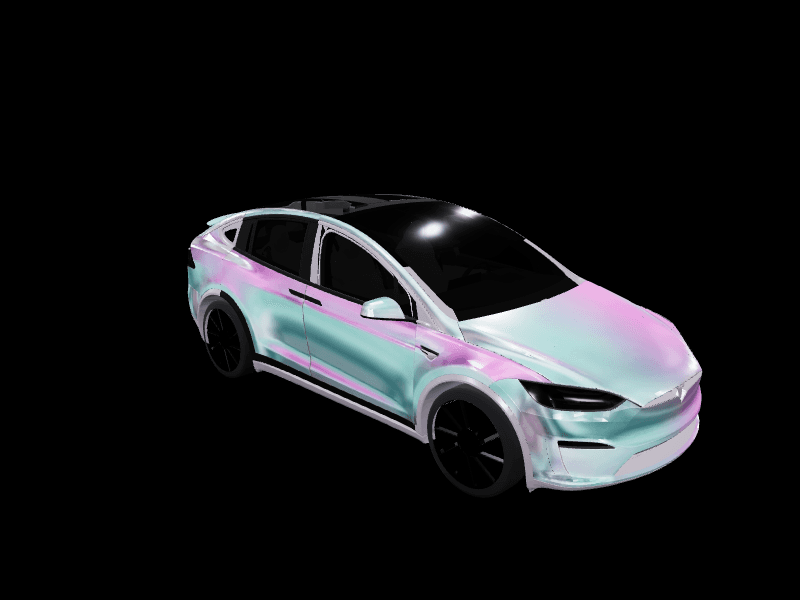
The gallery has finished Model X wraps, already built on Tesla's template, that download as ready-to-use PNGs. Liquid Chrome is a magenta-to-teal chrome shift, and Carbon Fiber Red Neon puts red light strips on a carbon finish. The Tesla Model X wraps page has the rest, and any of them can be opened in the studio and changed.
Pick Model X, then open the studio and the template is already waiting.
Frequently asked questions
Is there a Tesla Model X wrap template? Yes, one. Tesla publishes it as Model X (2021+) in its official custom wraps repository, a 1024 by 1024 PNG. The FrunkLab studio has it built in.
What size is the Model X wrap template? 1024 by 1024 pixels. Paint Shop accepts PNG files from 512 by 512 up to 1024 by 1024, under 1 MB.
Where are the Falcon Wing doors on the Model X template? Each one is two shapes: the tall panel on the side of the car, and the back half of the thin strip beside the roof glass. Paint both so the door matches from top to bottom.
Is there a separate template for the Model X Plaid? No. Tesla publishes one Model X template for the 2021 and later car.
Can I use the Model X template in Photoshop or Canva? Yes. Open the template, paint on a layer above it inside the body outline, hide the template layer and export a PNG under 1 MB. The studio does the same with the outline, the 3D check and the export handled for you.
Put a custom wrap on your Model X
Community designs, free to download, or make your own in the browser.